Prompts
Prompts are predefined flags and options specific to each template type that you can enable to allow runtime customization. Unlike Survey Variables which are custom fields you create, prompts are built-in options that correspond to specific CLI flags for Ansible, Terraform, and other tools.
This feature allows you to:
- Override template defaults at runtime
- Target specific hosts or resources
- Control execution behavior with CLI flags
- Pass runtime options via API calls or schedules
Prompts vs. Survey Variables
| Feature | Prompts | Survey Variables |
|---|---|---|
| Definition | Predefined template-specific options | Custom fields you create |
| Examples | Ansible: --limit, --tagsTerraform: workspaces, -destroy | Environment name, version number, custom parameters |
| Configuration | Enable via checkboxes in template | Add in template settings with name and type |
| Passed as | Built-in CLI flags | Ansible: --extra-varsTerraform: -var |
Prompts are standardized options built into Semaphore for specific tools, while Survey Variables are flexible custom fields you define yourself.
Ansible Prompts
For Ansible playbook templates, you can enable prompts for the following CLI options:
Limit
Enable the --limit prompt to specify which hosts to target when running the playbook.
CLI equivalent: ansible-playbook playbook.yml --limit webservers
Use cases:
- Run playbook on a subset of inventory hosts
- Target specific servers for deployment
- Test changes on a single host before rolling out
Example:
- Your inventory contains 50 web servers
- Enable the Limit prompt
- When running the task, specify
web-01.example.comto target only that server - Or specify
webservers:&productionto target production web servers
Tags
Enable the --tags prompt to run only tasks with specific tags.
CLI equivalent: ansible-playbook playbook.yml --tags deploy,restart
Use cases:
- Execute only specific parts of a playbook
- Run deployment steps without configuration tasks
- Quickly restart services without full playbook execution
Example:
---
- hosts: all
  tasks:
    - name: Install packages
      apt:
        name: nginx
      tags: install

    - name: Deploy application
      copy:
        src: app.tar.gz
        dest: /opt/app/
      tags: deploy

    - name: Restart service
      service:
        name: nginx
        state: restarted
      tags: restart
Enable the Tags prompt and enter deploy,restart to skip the installation step.
Skip Tags
Enable the --skip-tags prompt to skip tasks with specific tags.
CLI equivalent: ansible-playbook playbook.yml --skip-tags testing,debug
Use cases:
- Skip optional tasks in production
- Exclude debug or testing tasks
- Bypass time-consuming tasks when not needed
Example: Using the playbook above, enable Skip Tags and enter install to skip package installation and only run deployment and restart tasks.
Skip Galaxy install
Enable the prompt to let the user skip the ansible-galaxy install step for roles and collections when running the task.
Use cases:
- Requirements are already installed in the runner image
- Save time on repeated runs when nothing changed in
requirements.yml
Force Galaxy install
Enable the prompt to let the user force ansible-galaxy install --force for every requirements file, ignoring the requirements checksum Semaphore keeps between runs.
CLI equivalent: ansible-galaxy role install -r requirements.yml --force
Use cases:
- A requirements file references a branch rather than a fixed version and you need the latest commit
- A previous install left roles or collections in a broken state
- Verify that a playbook works from a clean set of dependencies
See Galaxy requirements for how the template-level defaults work.
Enabling Ansible Prompts
To enable Ansible prompts:
- Go to Task Templates and select your Ansible template
- Look for the Ansible Prompts section in template settings
- Enable checkboxes for the prompts you want:
- ☐ Limit - Enable
--limitflag - ☐ Tags - Enable
--tagsflag - ☐ Skip Tags - Enable
--skip-tagsflag - ☐ Debug - Enable verbosity (
-v) selection - ☐ Skip Galaxy install - Allow skipping
ansible-galaxy install - ☐ Force Galaxy install - Allow forcing
ansible-galaxy install --force
- ☐ Limit - Enable
- Save the template
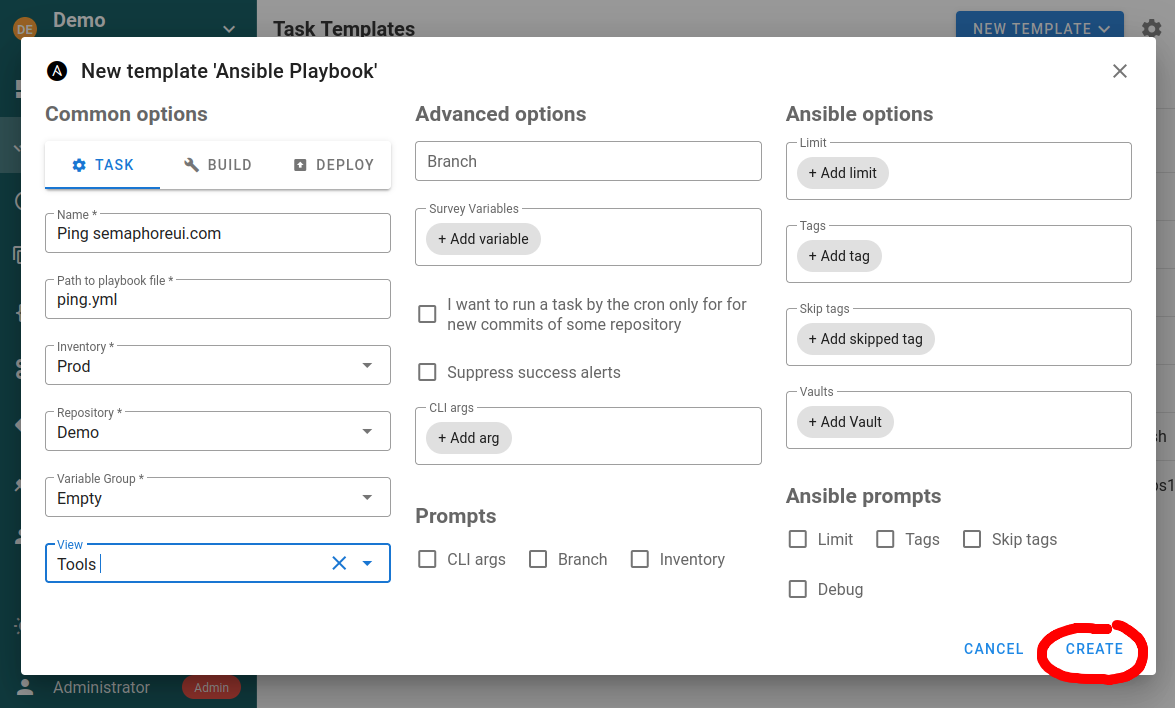
When enabled, these fields appear in the task run form, API requests, and schedule configurations.
Terraform/OpenTofu Prompts
For Terraform and OpenTofu templates, Semaphore provides several built-in prompts:
Workspace Selection
Select which Terraform workspace to use for the task execution.
CLI equivalent: terraform workspace select staging
Use cases:
- Manage multiple environments (dev, staging, production)
- Separate state files for different configurations
- Test infrastructure changes in isolation
Setup:
- Create workspaces in the template's Workspaces tab
- The workspace selector automatically appears in the task form
- Users choose the target workspace when running tasks
See Terraform Workspaces for detailed setup.
Destroy Flag
Enable the -destroy flag to tear down infrastructure.
CLI equivalent: terraform apply -destroy
Use cases:
- Clean up temporary test environments
- Decommission infrastructure
- Remove specific resources
Important: This is a destructive operation. Use with caution and consider requiring confirmation in your workflows.
Migrate State Flag
Enable the -migrate-state flag when changing backend configuration.
CLI equivalent: terraform init -migrate-state
Use cases:
- Move state to a different backend
- Migrate between storage locations
- Update backend configuration
Enabling Terraform Prompts
Terraform prompts are available in the template settings:
- Go to Task Templates and select your Terraform template
- Configure available prompts in template settings:
- Workspace selection (automatically enabled if workspaces are configured)
- Destroy flag option
- Migrate state option
- Save the template
The task form displays these options when running Terraform tasks.
Bash, PowerShell, and Python Prompts
For Bash, PowerShell, and Python templates, prompts are minimal as most customization is handled through Survey Variables.
Available prompts are:
- CLI args
- Branch
These template types benefit more from custom Survey Variables for passing parameters to scripts.
Using Prompts
Manual Task Execution
When running a task from a template with prompts enabled:
- Click Run on the template
- A form appears with enabled prompt fields
- Fill in values for the prompts you want to use (optional fields can be left empty)
- Click Run Task
The task executes with your specified prompt values passed as CLI flags.
API Calls
To pass prompt values via API, include them in the request payload:
Ansible example:
curl -XPOST \
  -H 'Content-Type: application/json' \
  -H 'Authorization: Bearer YOUR_TOKEN' \
  -d '{
    "template_id": 123,
    "limit": "webservers",
    "tags": "deploy,restart",
    "skip_tags": "testing"
  }' \
  https://your-semaphore.com/api/project/1/tasks
Important: Prompts must be enabled in the template for the values to be accepted. If you pass prompt values via API without enabling them, those values will be ignored.
Scheduled Tasks
Schedules can include prompt values to customize automated task execution:
Example: Schedule with Ansible prompts
- Daily deployment schedule with
limit: "production"andtags: "deploy" - Weekly maintenance schedule with
tags: "updates,cleanup"
Configure prompt values in the schedule settings so each scheduled run uses the specified options.
Integrations and Webhooks
Integrations can extract values from webhooks and map them to prompts:
Example: GitHub webhook triggers deployment
- Extract branch name from webhook
- Map to Limit prompt to target specific environment
- Deploy only to servers matching the branch environment
See Integrations for webhook configuration.
Best Practices
Enable only necessary prompts
Each enabled prompt adds a field to the task form. Only enable prompts that users will actually need to customize.
✅ Good: Enable Limit for operations teams who need to target specific hosts ❌ Bad: Enable all prompts "just in case"
Combine with Survey Variables
Use prompts for tool-specific CLI options and Survey Variables for custom parameters:
Example Ansible template:
- Prompts: Limit (which hosts), Tags (which tasks)
- Survey Variables:
app_version(which version),enable_rollback(custom logic)
Document API usage
If templates are triggered via API, document which prompts are available and their expected format:
## API Usage

Enabled prompts:
- `limit`: Host pattern (optional)
- `tags`: Comma-separated tag list (optional)

Example:
POST /api/project/1/tasks
{
  "template_id": 123,
  "limit": "webservers:&production",
  "tags": "deploy"
}
Use Limit for safe testing
Always test potentially destructive playbooks with the Limit prompt first:
- Enable Limit prompt in template
- First run: Specify
limit: "test-server-01"to test on one host - Verify success
- Second run: Specify
limit: "production"to roll out to all hosts
Validate prompt combinations
Some prompt combinations may not make sense. Add documentation or validation:
- Using
--tags deploywith--skip-tags deployconflicts - Specifying both workspace and destroy flag requires extra caution
Common Use Cases
Gradual Rollout with Limit
Deploy to production gradually using Ansible Limit:
- Run 1:
limit: "web-01.example.com"- Deploy to one server - Monitor for issues
- Run 2:
limit: "webservers:&canary"- Deploy to canary servers - Validate metrics
- Run 3:
limit: "webservers:&production"- Full rollout
Selective Execution with Tags
Use Tags to run only specific parts of a playbook:
Morning: tags: "deploy" - Deploy new version
Afternoon: tags: "config" - Update configuration
Evening: tags: "restart" - Restart services with new config
Environment Management with Workspaces
Use Terraform workspace selection for environment management:
- Development: Select
devworkspace - cheaper resources, faster iteration - Staging: Select
stagingworkspace - production-like for testing - Production: Select
prodworkspace - full production infrastructure
Cleanup with Destroy
Use Terraform destroy for temporary infrastructure:
- Create test environment: Run with workspace
test-branch-123 - Run integration tests
- Clean up: Run with destroy flag enabled and workspace
test-branch-123
Troubleshooting
Prompt values ignored
Problem: Passing prompt values but they don't take effect
Solution: Verify the corresponding prompt is enabled in the template settings. Prompts must be explicitly enabled.
Cannot specify limit
Problem: Limit field not appearing in task form
Solution:
- Edit the template
- Find the "Ansible Prompts" section
- Enable the "Limit" checkbox
- Save the template
API calls fail with prompt values
Problem: API requests with prompt values return errors
Solution:
- Ensure prompts are enabled in template
- Check JSON formatting in request body
- Verify field names match exactly (
limit, nothost_limit)
Tags not filtering tasks
Problem: Specifying tags but all tasks still run
Solution:
- Verify tasks in playbook have proper tags defined
- Check for typos in tag names
- Ensure tags are comma-separated without spaces:
deploy,restartnotdeploy, restart
Related Documentation
- Survey Variables - Custom fields for templates
- Ansible Templates - Ansible-specific configuration
- Terraform Templates - Terraform-specific configuration
- Schedules - Automated task execution
- Integrations - Webhook-triggered tasks
- API Documentation - API reference