Projects
A project is the main unit of separation in Semaphore UI. Every resource you work with belongs to exactly one project: task templates, tasks, inventories, variable groups, keys, repositories, integrations, schedules, runners, and team members.
Projects are independent from one another, so you can use them to organize unrelated systems within a single Semaphore installation: different teams, infrastructures, environments, or applications.
Project navigation
After you open a project, the left sidebar shows the project switcher at the top and all project sections below it. Under the project name you see your role in this project (for example task_runner). The role defines which sections you can change; see Teams.
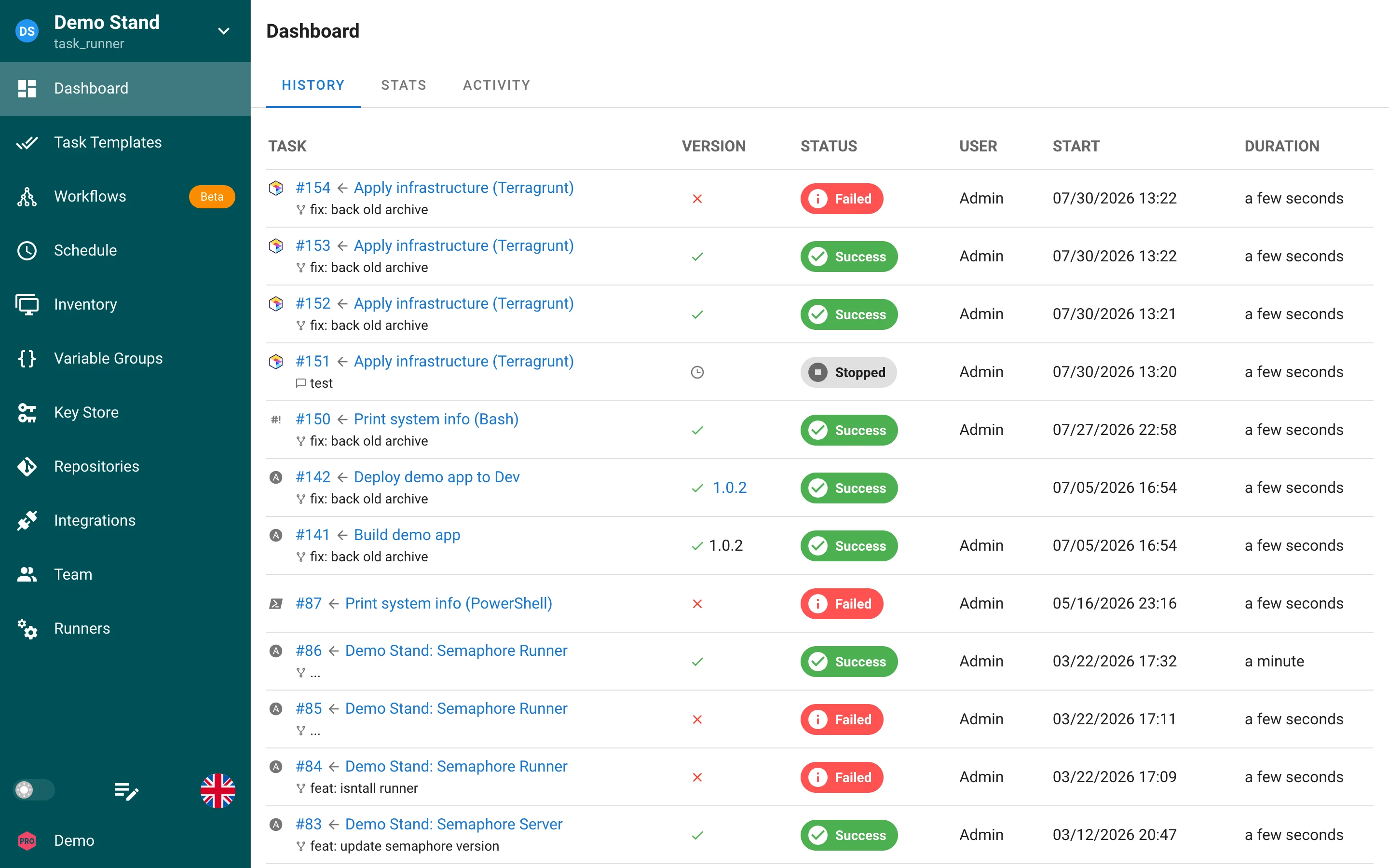
| Section | What it contains |
|---|---|
| Dashboard | Tabs History, Stats, Activity and, for project owners, Settings |
| Task Templates | Definitions of what to run and how: Task Templates |
| Workflows (Pro) | Graphs of templates with approvals and branching: Workflows |
| Schedule | Cron-like schedules for templates: Schedules |
| Inventory | Hosts and connection settings for Ansible, workspaces for Terraform: Inventory |
| Variable Groups | Reusable variables and secrets injected into tasks: Variable Groups |
| Key Store | Encrypted credentials and external secret storages: Key Store |
| Repositories | Git repositories or local paths with your playbooks and scripts: Repositories |
| Integrations | Incoming webhooks that start tasks: Integrations |
| Team | Members and their roles: Teams |
| Runners (Pro) | Runners attached to this project: Project runners |
The bottom of the sidebar holds the dark mode switch, the language switcher, and your account menu.
Creating a project
Project creation is available to administrators. Regular users can create projects only when the server option non_admin_can_create_project (SEMAPHORE_NON_ADMIN_CAN_CREATE_PROJECT) is enabled, see Configuration.
- Click the project name at the top of the sidebar and choose New Project.
- Fill in the form:
| Field | Description |
|---|---|
| Project Name | Display name of the project. You can change it later in Settings. |
| Max number of parallel tasks | Optional. How many tasks of this project may run at the same time. Leave it empty for no limit. Tasks above the limit wait in the queue with the status waiting. |
| Demo | Fills the new project with sample data: a public demo repository, an inventory, a key, and several task templates. Use it to try Semaphore without configuring anything. |
- Click Create.
The user who creates a project becomes its Owner.
Switching between projects
Click the project name at the top of the sidebar to see all projects you are a member of and switch between them. The last opened project is remembered in your browser.
Backup and restore
A project can be exported to a JSON file and imported into the same or another Semaphore instance:
- Export: open Dashboard → Settings and click Backup project (see Settings).
- Import: click the project name in the sidebar, choose Restore project, and upload the backup file.
Both operations are also available from the command line, see CLI: Projects.