Workflows Pro
Workflows let you chain multiple task templates into a directed graph (DAG) with branching, approvals, and timed pauses. A workflow run progresses automatically as each step finishes — you design the graph once in the visual editor, then launch runs from the Workflows page.
Workflows are a Semaphore Pro feature. The Workflows menu item appears only when your subscription includes them.
Overview
A workflow consists of:
- Nodes — steps in the graph (run a template, wait for approval, pause for a delay, or annotate with a note).
- Edges — connections between nodes, each labeled with a condition that controls when the downstream node starts.
When you start a workflow, Semaphore creates a workflow run. The server drives progression: as tasks complete, approvals are resolved, or delays expire, downstream nodes are launched according to the edge conditions.
Creating a workflow
- Open your project and go to Workflows.
- Click New Workflow.
- In the graphical editor:
- Drag nodes from the palette onto the canvas.
- Connect nodes by dragging from one node's output handle to another.
- Click a node or edge to edit its properties in the side panel.
- Set a name (and optionally a start version for run versioning).
- Fix any problems listed in the Problems panel, then click Save.
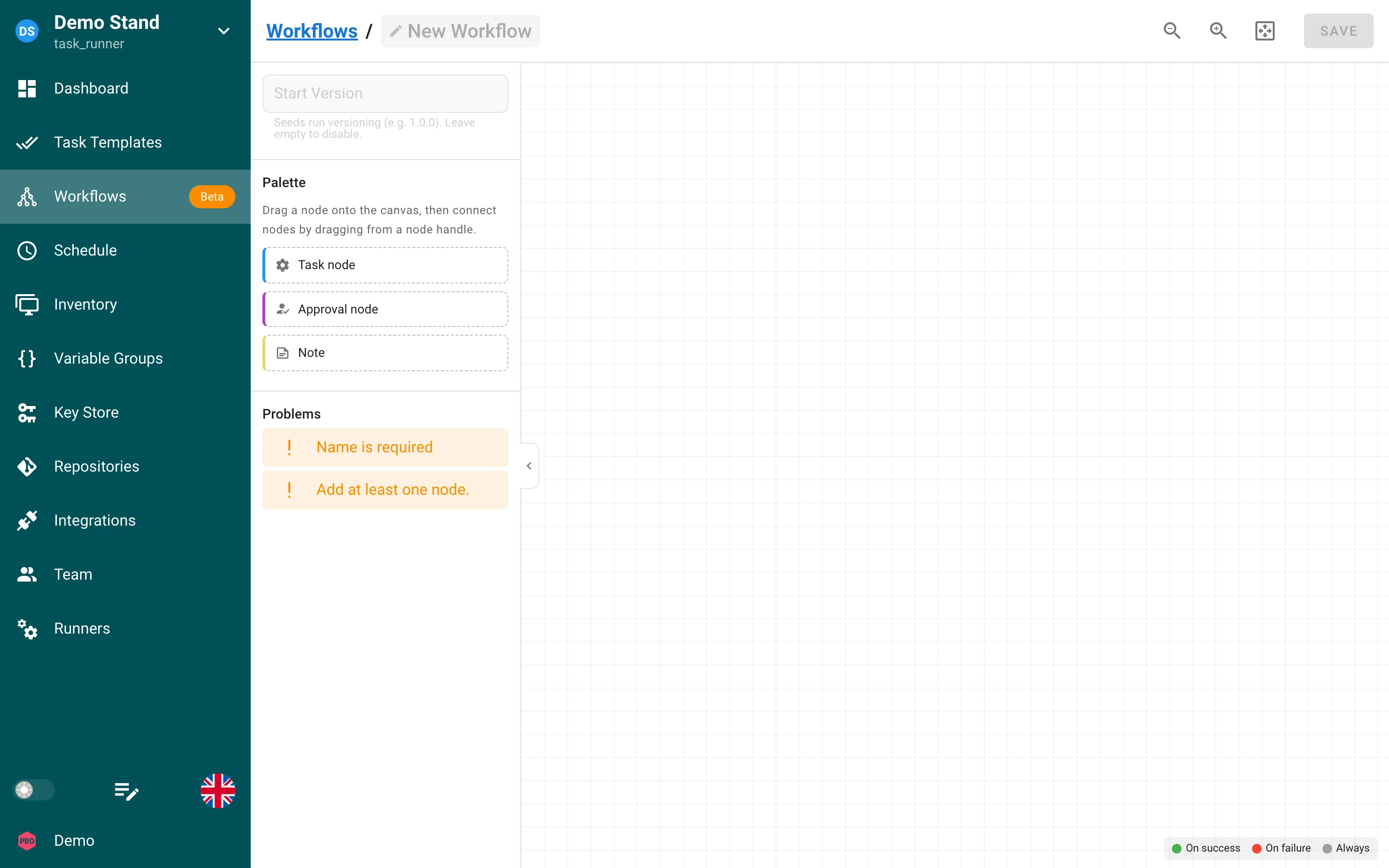
The editor validates the graph before saving. A valid workflow must have at least one node, exactly one starting node (no incoming edges), no cycles, and complete configuration on every executable node.
Node kinds
| Kind | Purpose |
|---|---|
| Task | Runs a task template. You can override template parameters (inventory, environment, Ansible limit, extra CLI arguments) per node via task params. |
| Approval | Pauses the run until a user with permission approves or rejects. Optionally set a timeout (seconds) and an approval message. |
| Delay | Waits for a configured number of seconds before continuing to downstream nodes. Useful for cooling-off periods, maintenance windows, or spacing out dependent steps. |
| Note | Free-form annotation on the canvas. Note nodes do not execute and are not connected by edges — they are for documentation only. |
Convergence
Nodes with multiple incoming edges can require all upstream nodes to finish (default) or any one of them. Set Convergence in the node property panel.
Delay nodes
A delay node pauses the workflow run for the configured duration (minimum 1 second). While waiting:
- The run stays in running status.
- The run view shows a live countdown on the delay node.
- Downstream nodes connected via edges are not started until the delay completes.
If the workflow run is stopped while a delay is active, the delay is cancelled and the run ends in stopped status.
Approval nodes
When the run reaches an approval node, status changes to approval until someone approves or rejects. Approve/Reject controls appear on the run view. Rejected approvals fail the run according to the connected edge conditions.
Edge conditions
Each edge has a condition that determines when the downstream node becomes ready:
| Condition | Downstream starts when the upstream node… |
|---|---|
| On success | Finishes successfully (default). |
| On failure | Finishes with an error. |
| Always | Finishes in any terminal state (success or failure). |
Use On failure branches for compensating actions or notifications. Use Always when the next step should run regardless of outcome.
Running and monitoring
- Run workflow — starts a new run from the Workflows list.
- Run view — full-screen graph with live status on each node (running, success, failed, approval, delay countdown).
- Stop — while a run is
runningorapproval, users withrun_project_taskscan stop it. All active tasks are stopped, pending approvals are rejected, and the run is marked stopped.
Run statuses: running, approval, success, failed, stopped.
Run versioning
Set Start version on the workflow (for example 1.0.0) to enable version
labels on each run. Semaphore increments the version on successive runs, similar
to build templates.
Outputs and inputs
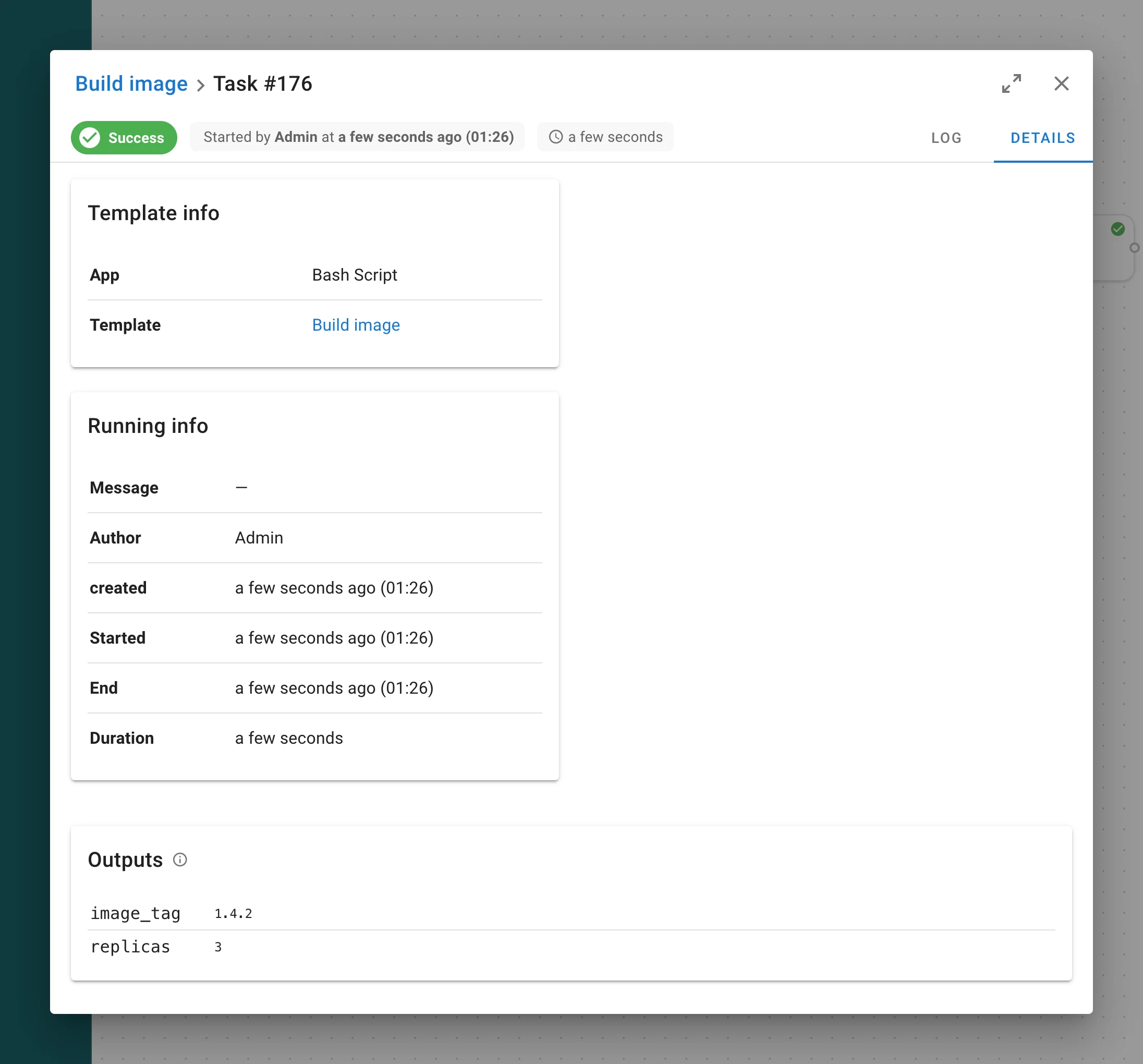
A task node can hand structured data to the nodes after it. The task produces outputs: a JSON object of named values, stored with the task when it succeeds. A connection into the next task node delivers inputs: it fills the survey variables of that node's template from the outputs of the node before it. No files are passed, only values.
Producing outputs
Every task started by a workflow run gets the environment variable SEMAPHORE_OUTPUTS_FILE:
the path of an empty file created for that task alone. Whatever the task writes there as a JSON
object becomes its outputs.
| App | How outputs are produced |
|---|---|
| Ansible | ansible.builtin.set_stats with per_host: false (the default). The bundled semaphore_outputs callback plugin writes the aggregated run stats to the file; per-host stats are not outputs. |
| Terraform, OpenTofu, Terragrunt | Captured automatically from output -json after a successful run. A value the task wrote to the file itself wins over a captured output of the same name. |
| Bash, Python, PowerShell, Pulumi | The script writes the file. |
# Bash: write the outputs file
cat > "$SEMAPHORE_OUTPUTS_FILE" <<EOF
{"image_tag": "1.4.2", "replicas": 3, "subnet_ids": ["subnet-1", "subnet-2"]}
EOF
# Ansible: set_stats becomes outputs
- name: Publish the image tag for the next nodes
  ansible.builtin.set_stats:
    data:
      image_tag: "{{ built_tag }}"
Rules:
- Outputs are read only when the task succeeds. A failed or stopped task has none, so an On failure branch receives nothing from the node that failed.
- Output names match
^[A-Za-z_][A-Za-z0-9_-]*$. A value can be any JSON value: string, number, boolean, list or object. - Limits: the file is at most 256 KB, with at most 100 outputs of at most 32 KB each.
- A missing or empty file means "no outputs". A file that is not a JSON object, uses a bad name or breaks a limit fails the task, with the reason in its log.
- Terraform outputs that cannot be stored — marked
sensitive, too large, with an invalid name or over the limits — are skipped and listed in the task log and in the task's Outputs panel as Not captured. They never fail the task.
Delivering inputs
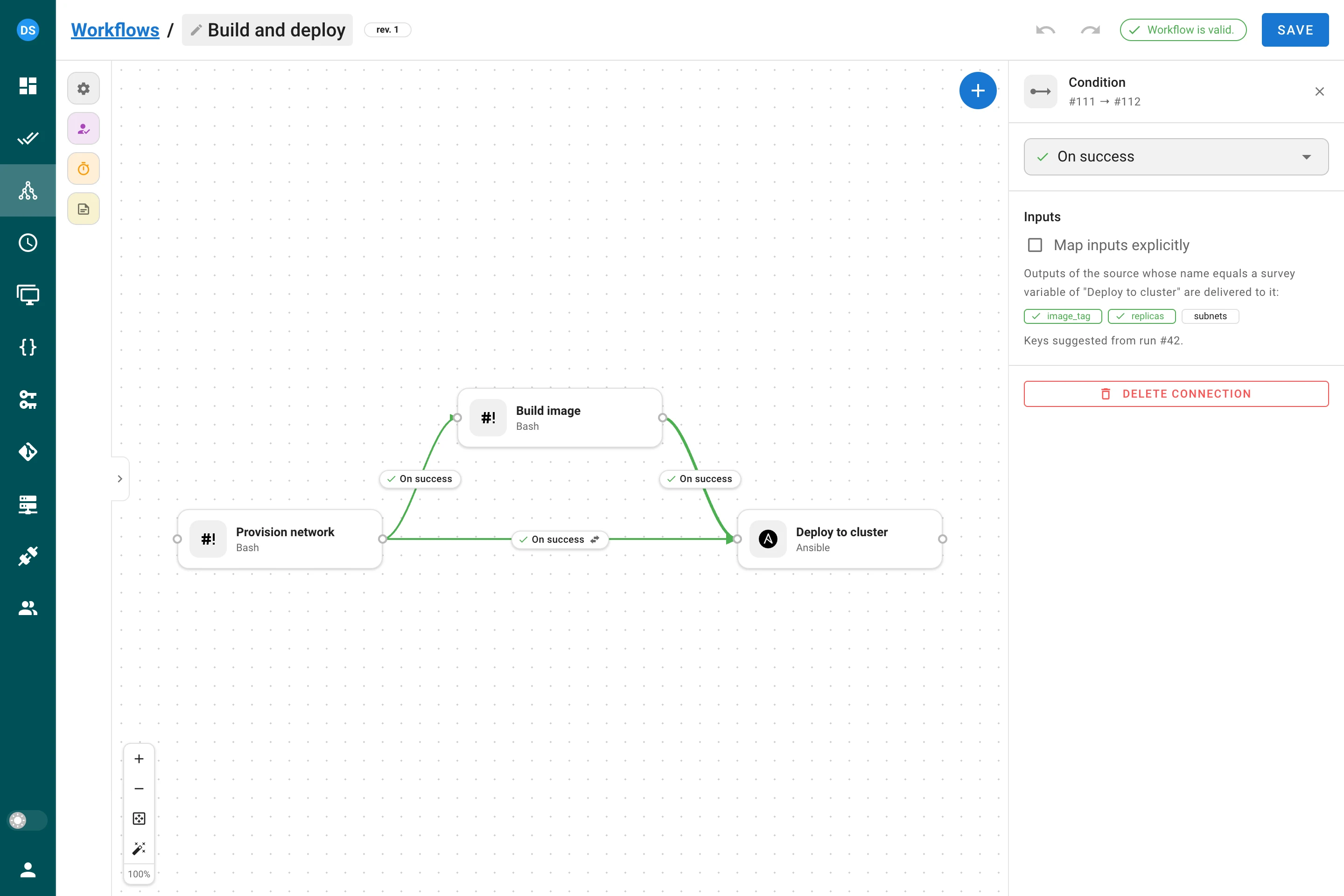
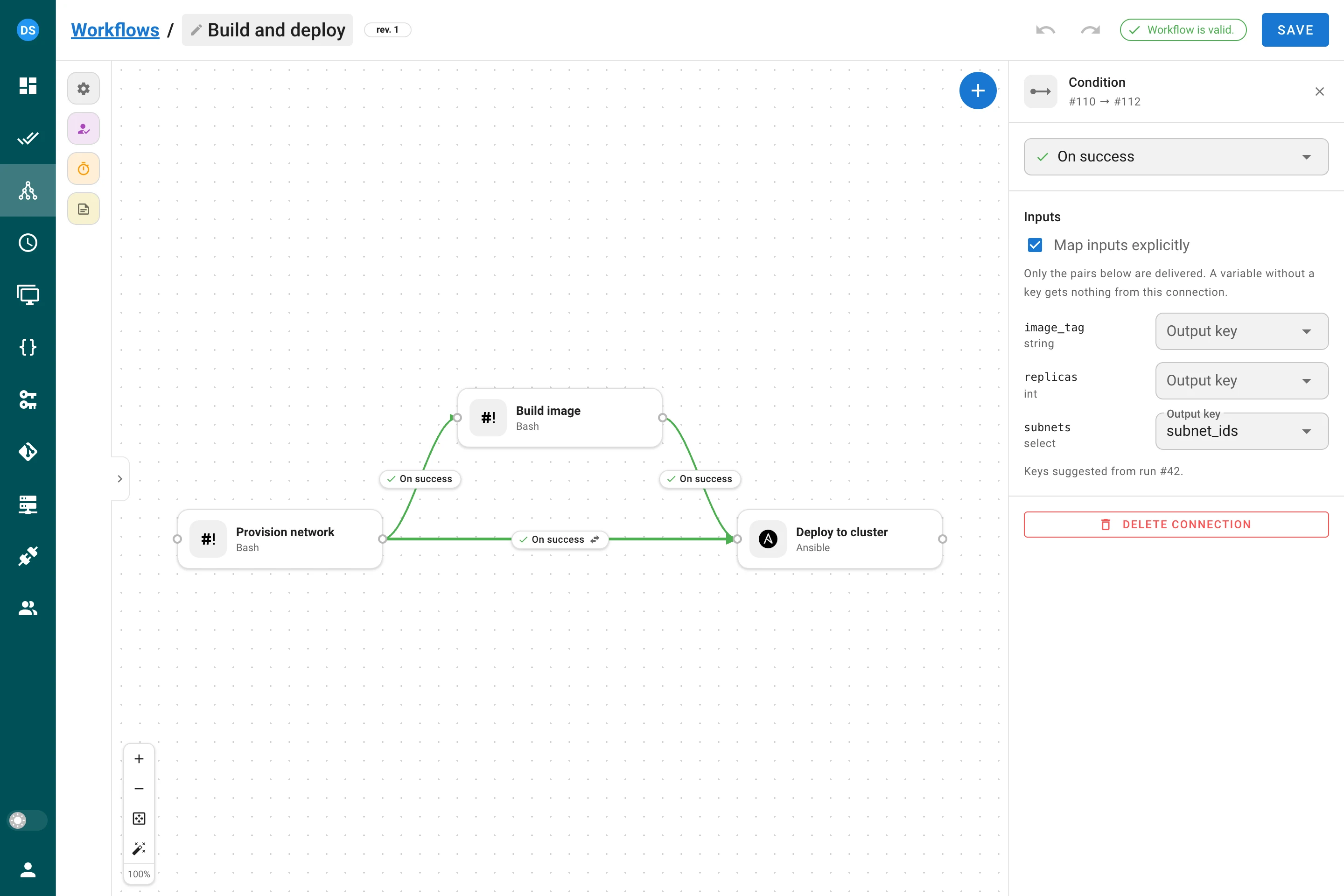
Click a connection that ends in a task node: its side panel has an Inputs section.
- By name (default). Every output of the source node whose name equals a survey variable of the destination template fills that variable. Outputs with no matching variable are ignored; a hyphenated Terraform output is never a valid variable name, so it is not delivered.
- Map inputs explicitly. Check the box to deliver only the pairs you list: a survey variable of the destination template and the output key that feeds it. An empty list delivers nothing. Once the workflow has a finished run, the panel suggests the keys that run produced and flags a key that was not captured.
A variable that no connection fills falls back to the value set on the node, then to the variable's default. A required variable left without a value fails the node's task before it starts, with a log line naming the variable, so the run follows its On failure edges.
Values are coerced to the variable type: an int variable takes a number or a digit string,
an enum or select variable takes only its own options, a string or text variable takes
anything (an object or list arrives as compact JSON). A value that does not fit is ignored,
with the reason in the task log, and the fallback applies.
Approval and delay nodes pass outputs through: task → approval → task still delivers
data, and the mode of the last connection applies.
Several connections into one node. Each connection whose source succeeded contributes. When two of them fill the same variable, an explicit mapping beats a by-name delivery; between two of the same kind the connection created first wins, so a run gives the same result every time. The task log names the winner.
Where to see them
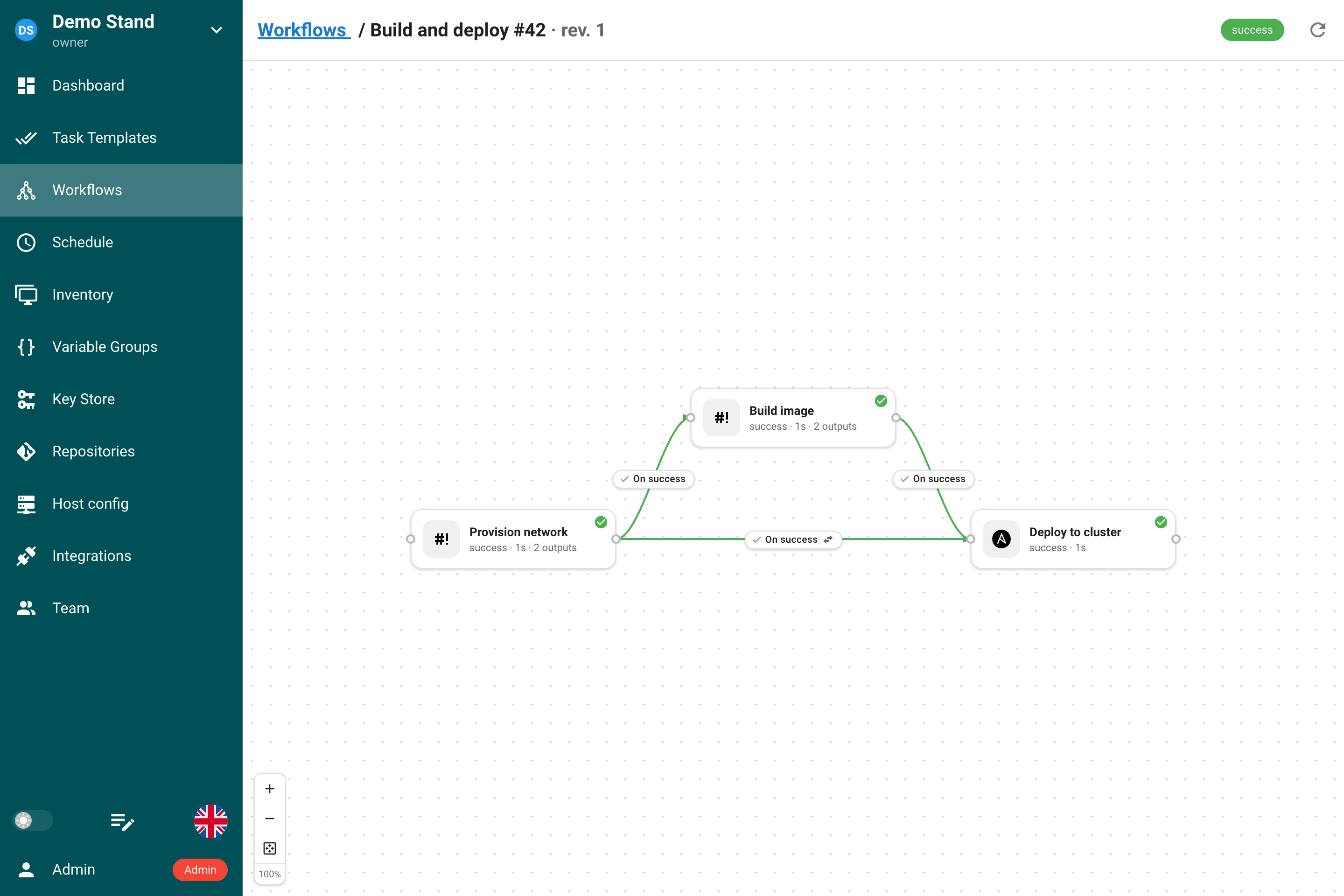
- The run view shows an N outputs badge on every node that produced some.
- The task dialog has an Outputs table with the values and the Not captured list.
- The log of a task fed by a connection starts with one line per variable, such as
Input "image_tag" <- output "image_tag" of node 3 (task #41), so the source of every value is one line above the value itself.
Limitations
- Outputs are stored and shown in plain text to everyone who can see the task. Do not pass
secrets through outputs. A survey variable of type
secretcannot be filled by a connection. - Outputs are values, never code: Ansible receives them as literal strings, and a Jinja2 expression inside a value is not evaluated.
- Tasks on remote runners produce and receive outputs like tasks on the server. Tasks run by the Docker or Kubernetes executor of a runner do not produce outputs yet; their log says so.
Environment variables
A task started by a workflow receives, in addition to the variables every task gets:
| Variable | Value |
|---|---|
SEMAPHORE_WORKFLOW_ID | ID of the workflow |
SEMAPHORE_WORKFLOW_RUN_ID | ID of the current run |
SEMAPHORE_WORKFLOW_VERSION | Version of the current run, when it has one |
SEMAPHORE_WORKFLOW_URL | Link to the run page, for example https://semaphore.example.com/project/1/workflows/7/runs/42 (requires web_host in the server config) |
SEMAPHORE_OUTPUTS_FILE | Path of the file the task writes its outputs to |
They are set for every app, including Ansible and Terraform, and reach tasks that run on remote runners.
Permissions
- Managing workflows (create, edit, delete) requires project resource management permissions.
- Running workflows requires
run_project_tasks. - Resolving approvals requires appropriate project access (same users who can run tasks in the project).
API
Workflow templates and runs are available under
/api/project/{project_id}/workflows. See the
API documentation for request and response schemas, including
delay node fields (delay_seconds), input_mode and input_mappings on edges, the
artifacts document of each task in the run details (GET …/runs/{run_id}) and the stop
endpoint (POST …/runs/{run_id}/stop).