Alerts
The Alerts tab of a project decides where task results are reported. It has two parts:
- Server channels are the notification providers an administrator configured on the server in
config.json, see Notifications. They are shared by every project and each project decides whether it uses them. - Project alerts are named destinations that belong to the project: a Telegram chat, a Slack webhook, a list of e-mail addresses, and so on. Templates and schedules pick which alerts they send.
Both parts can be used at the same time.
Server channels
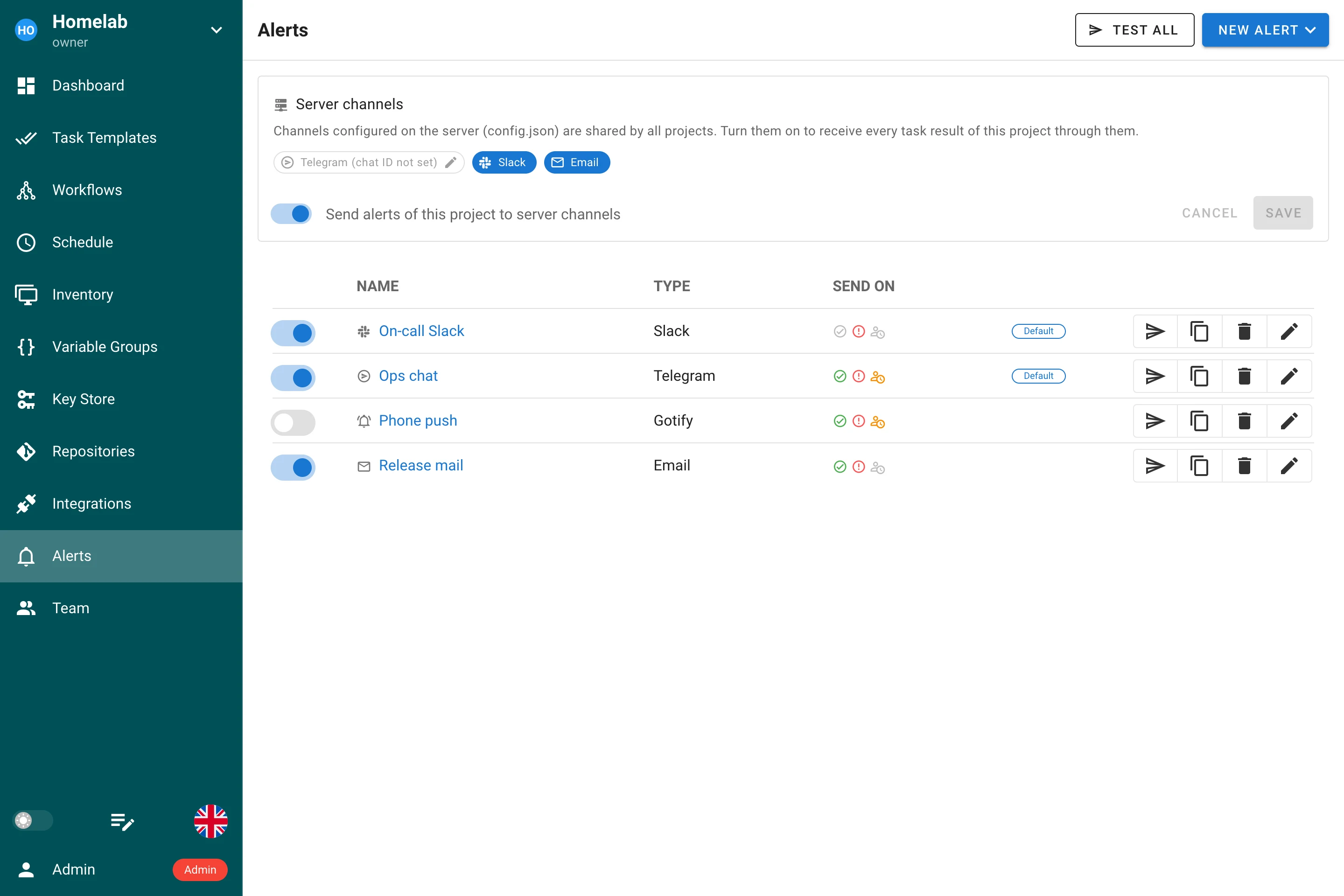
The card at the top of the page lists the channels the server has configured. Turn on Send alerts of this project to server channels to receive every task result of this project through them. This is the same switch that older versions called Allow alerts for this project in the project settings.
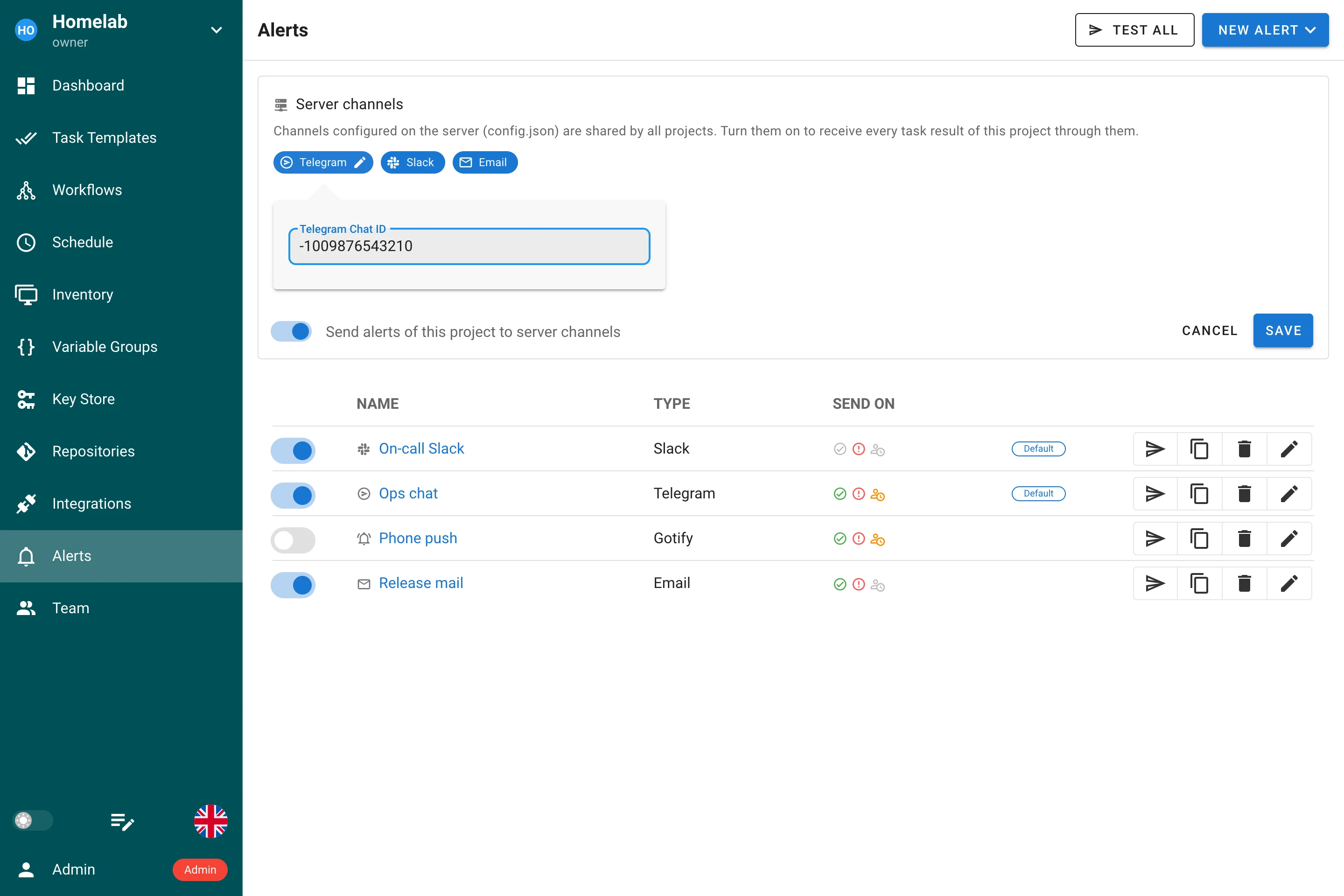
Telegram is listed as soon as the server has a bot token, greyed out until a chat is known. Click the chip to enter the Telegram Chat ID of this project; it overrides the server-wide chat and is required when the server has none.
Server channels report every notifiable status: success, failure and waiting for confirmation. E-mail reports failures only. A template can still suppress success or failure notifications, see Template alerts.
Project alerts
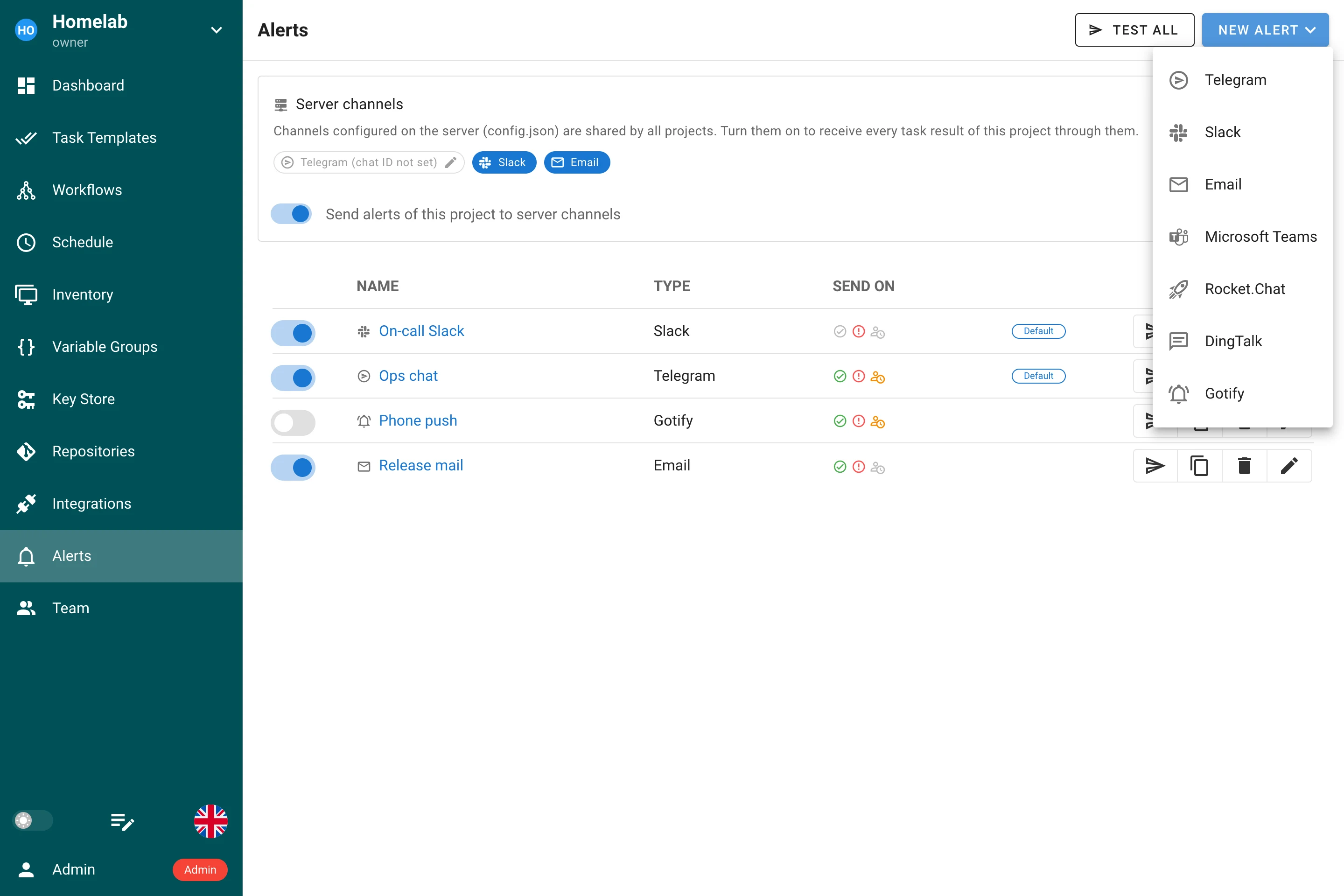
Press New Alert to create a destination. Each alert has:
| Field | Description |
|---|---|
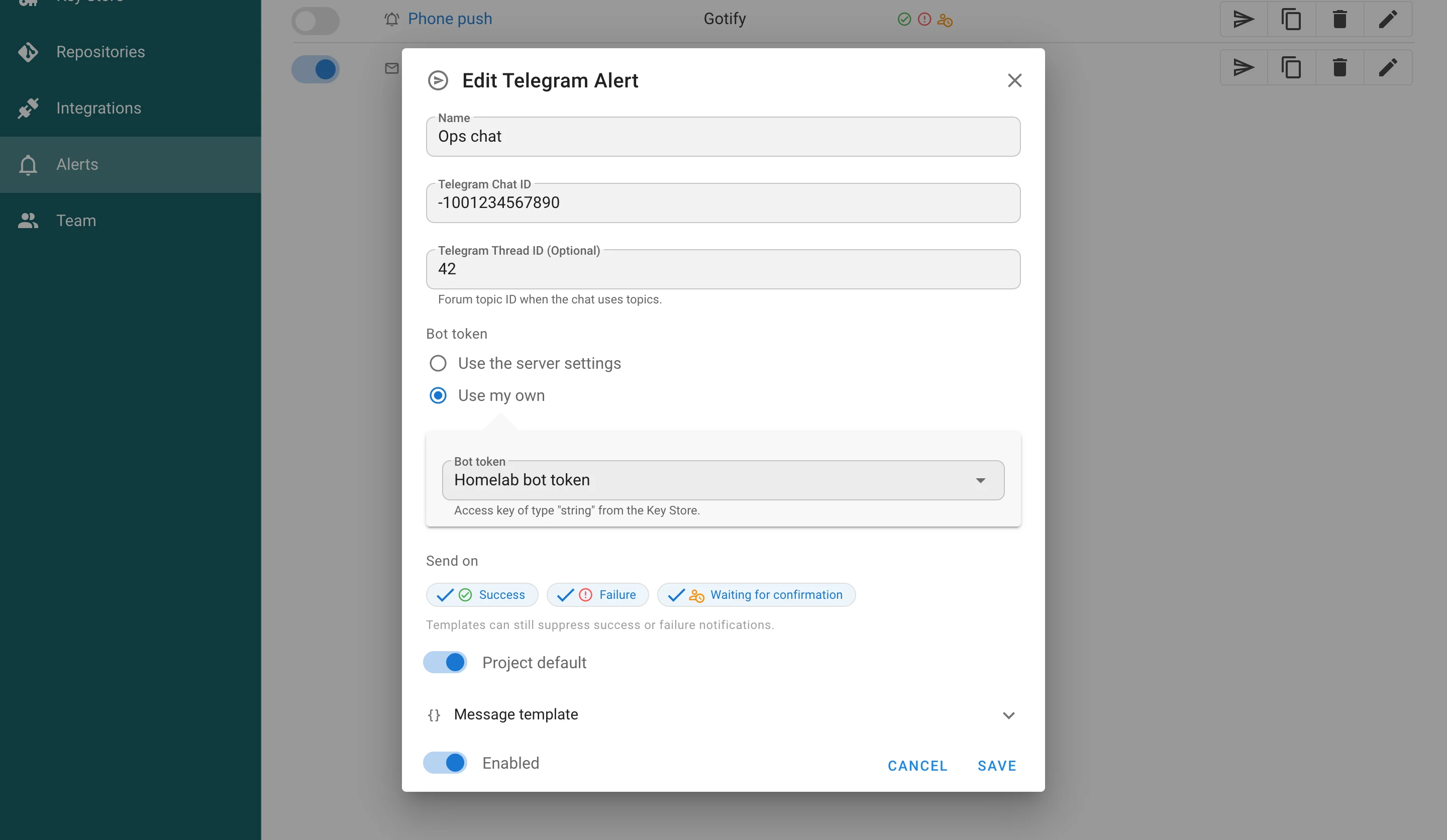
| Name | Shown in template and schedule forms. Unique within the project. |
| Type | The channel: Telegram, Slack, Email, Microsoft Teams, Rocket.Chat, DingTalk or Gotify. The form shows the destination fields the channel needs. |
| Destination | Chat ID and optional forum topic for Telegram; webhook URL for Slack, Teams, Rocket.Chat and DingTalk; server URL for Gotify; recipients for e-mail (leave empty to notify project members who enabled alerts in their profile). |
| Secret | Telegram, Gotify and e-mail need a secret: the bot token, the application token, the SMTP credentials. Use the server settings takes it from the server configuration; Use my own takes it from an access key of the Key Store (type Secret token for tokens, Login with password for SMTP). An e-mail alert with its own credentials may also set its own SMTP host, port, sender and encryption. |
| Send on | Which events the alert listens to: success, failure, waiting for confirmation. New alerts start with the channel defaults. |
| Project default | Marks the alert as one of the project defaults. Every template that uses project defaults sends it. |
| Enabled | A disabled alert is never sent and is not a project default. |
| Message template | Optional Go template for the message body. Leave the built-in text to follow future server updates. |
Secrets are never stored on the alert: they live encrypted in the Key Store and the key can not be deleted while an alert uses it. When the server has no bot token, SMTP server or Gotify pair configured, the form only offers Use my own. Webhook URLs must use http or https and may not point at the server itself. The same outbound policy applies to an own SMTP host: localhost, loopback, link-local and cloud metadata addresses (such as 169.254.169.254) are rejected, and the host is checked again when the connection is opened. The server-wide SMTP settings from the configuration are not restricted.
Use Send test message in the list to check one alert and Test all in the toolbar to send a test through every enabled destination of the project, server channels included.
An alert that is bound to a template or a schedule can not be deleted. The dialog lists the objects that use it.
Message templates
The body is a Go text/template (html/template for e-mail). The fields available are:
| Field | Value |
|---|---|
.Name | Template name |
.Author | Name of the user who started the task, or — |
.Project.Name, .Project.ID | The project |
.Playbook | Playbook or script of the template |
.ScheduleName | Name of the schedule that started the task, if any |
.Task.ID, .Task.URL | Task number and link to its log |
.Task.Result | Status with an icon, for example ✅ SUCCESS |
.Task.Desc | Message entered when the task was started |
.Task.Version | Build version, or the incoming build version for deploy tasks |
.Task.Duration | Run time, empty until the task started |
.Task.Trigger | manual, schedule, integration or api |
.Color | Attachment color for Slack and Rocket.Chat |
For chat channels the rendered text must be the JSON document the messenger expects; the built-in template is a good starting point. Telegram bodies are plain text with HTML formatting, the chat and topic are added by Semaphore.
Template alerts
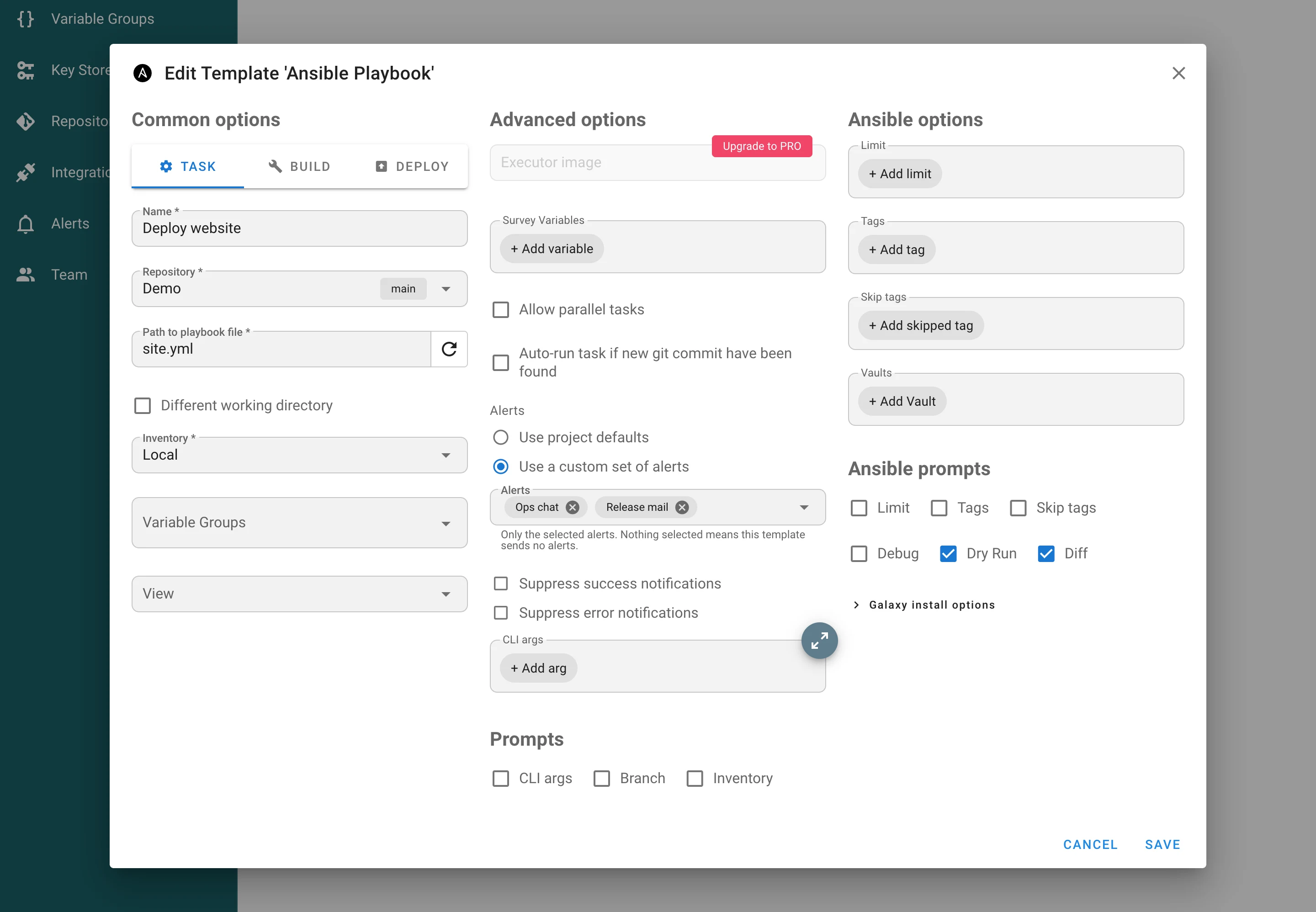
In the Advanced section of a task template, Alerts chooses between:
- Use project defaults — server channels, when they are switched on for the project, plus the alerts marked as project default. Existing templates keep this behaviour after an upgrade.
- Use a custom set of alerts — only the selected alerts. An empty selection means the template sends nothing.
Suppress success notifications and Suppress error notifications apply to both choices. Notifications about a task waiting for confirmation are never suppressed.
Schedule alerts
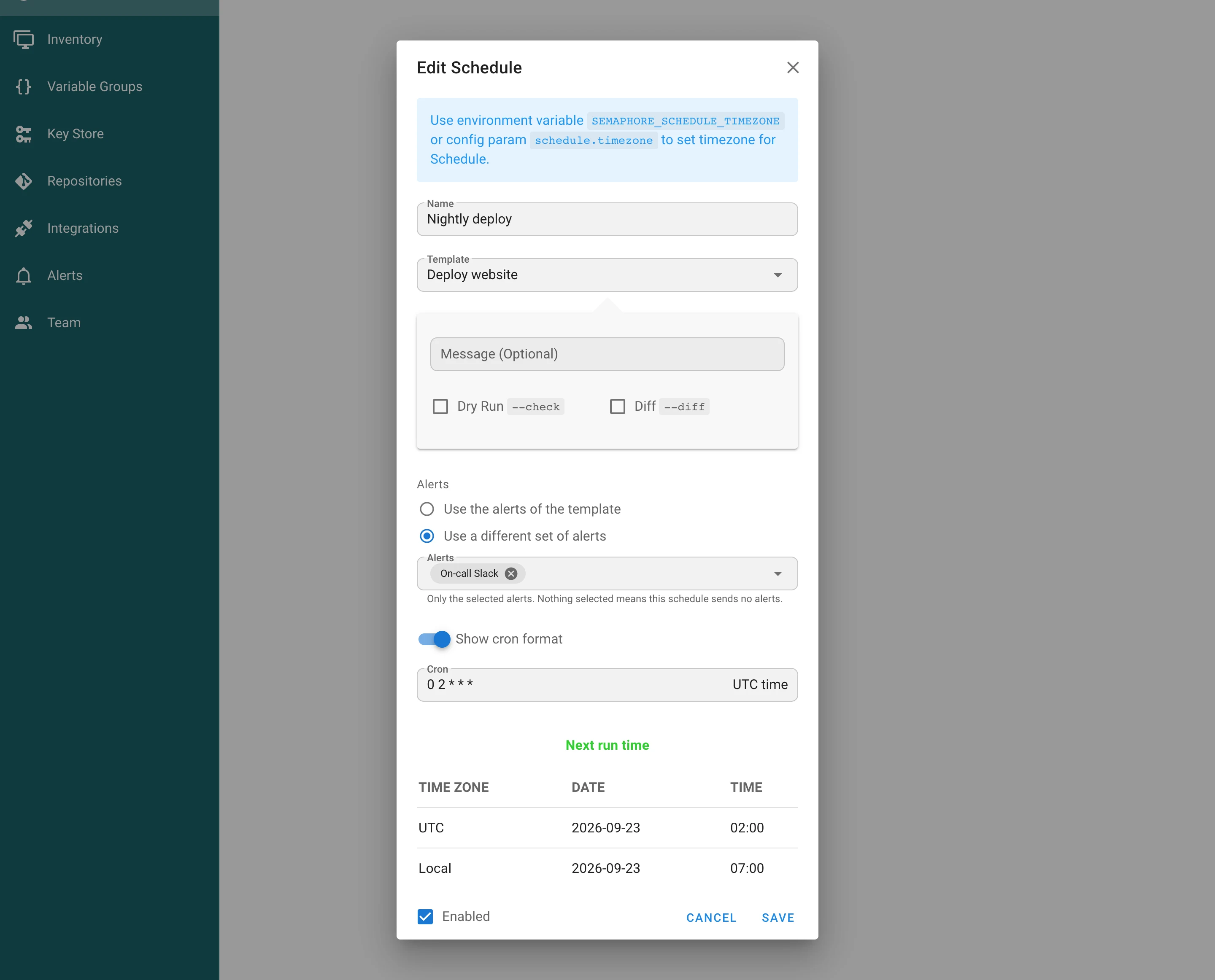
A schedule can use the alerts of the template or use a different set of alerts. The second choice replaces the template selection entirely for tasks started by that schedule, so a nightly job can report to an on-call channel while manual runs stay quiet.
How a task is routed
The destinations of a task are fixed when the task is created. Changing an alert, a template or a schedule while a task runs does not change where that task reports. Every delivery is recorded per task, destination and event, so in a high-availability setup only one server node sends each message.
Backups
Project alerts are part of the project backup. Templates and schedules refer to them by name, so a restored project keeps its bindings. Alerts refer to their access key by name; like every key, the secret value itself is not exported.