
Get task alerts where your team works
Send automation results to your configured chat and email channels. Give the team a link back to the task instead of another dashboard to watch.



Failures are easy to miss between dashboard checks
Jobs can fail while nobody is watching. Repeated dashboard checks take time. Sending every result to chat creates noise.
Send the events your team needs
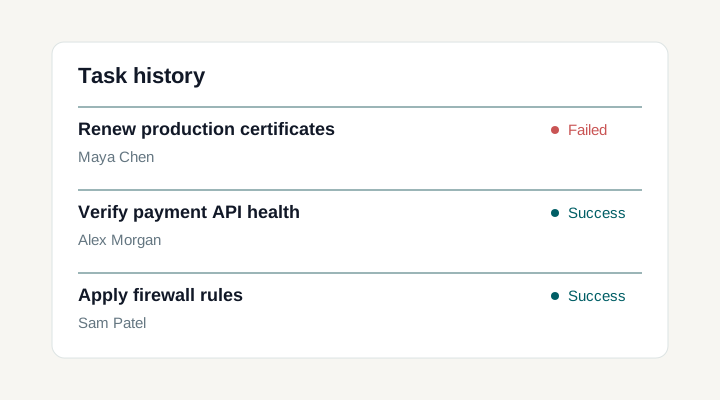
Task failed
Choose the channel and open the task directly from the alert.
Connect a channel, choose events and route each job
Enable a shared server channel or create a named project alert with its own destination and credential reference.
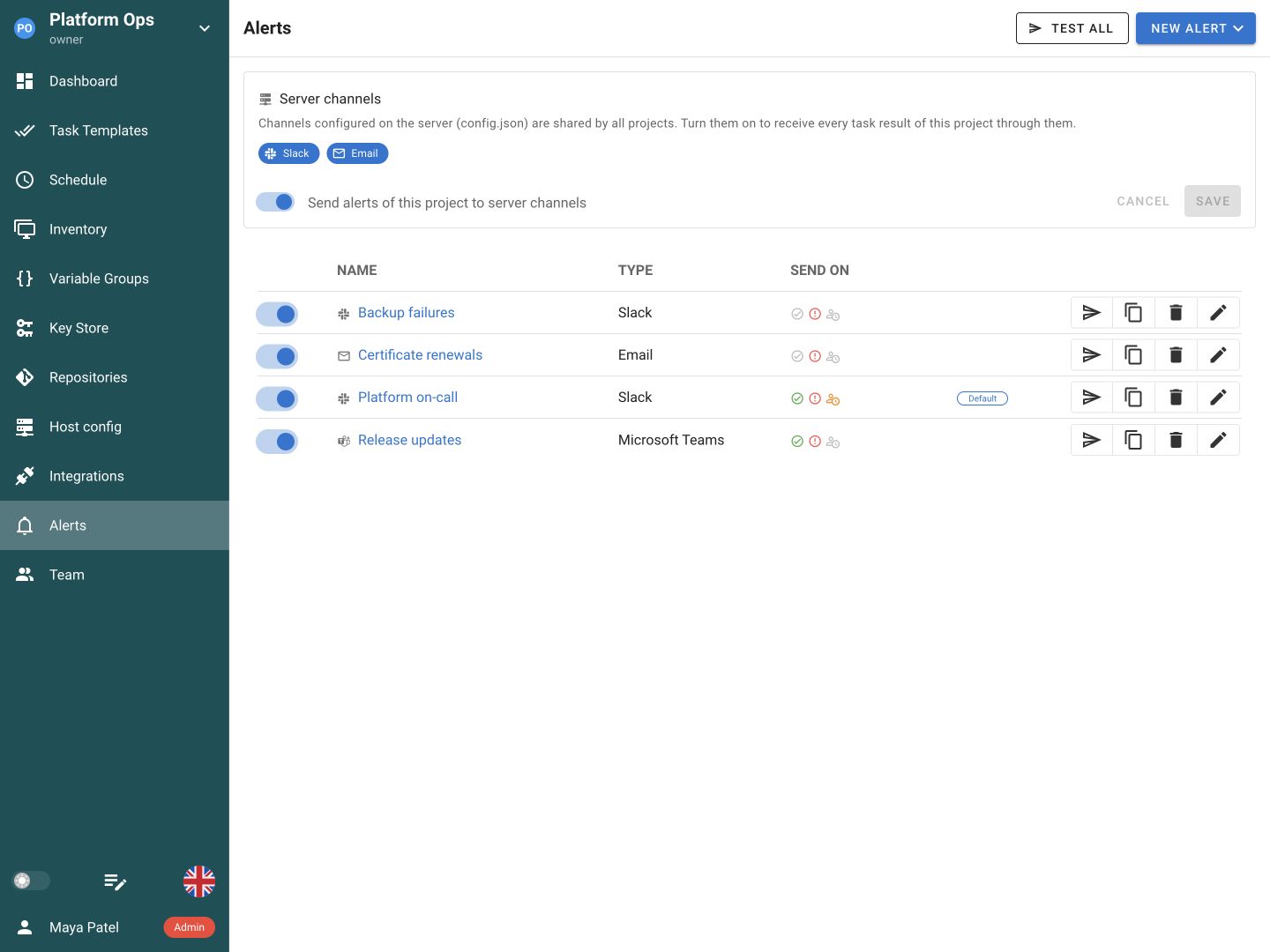
Choose the task events that each project alert sends, such as failures or waiting-for-confirmation events.
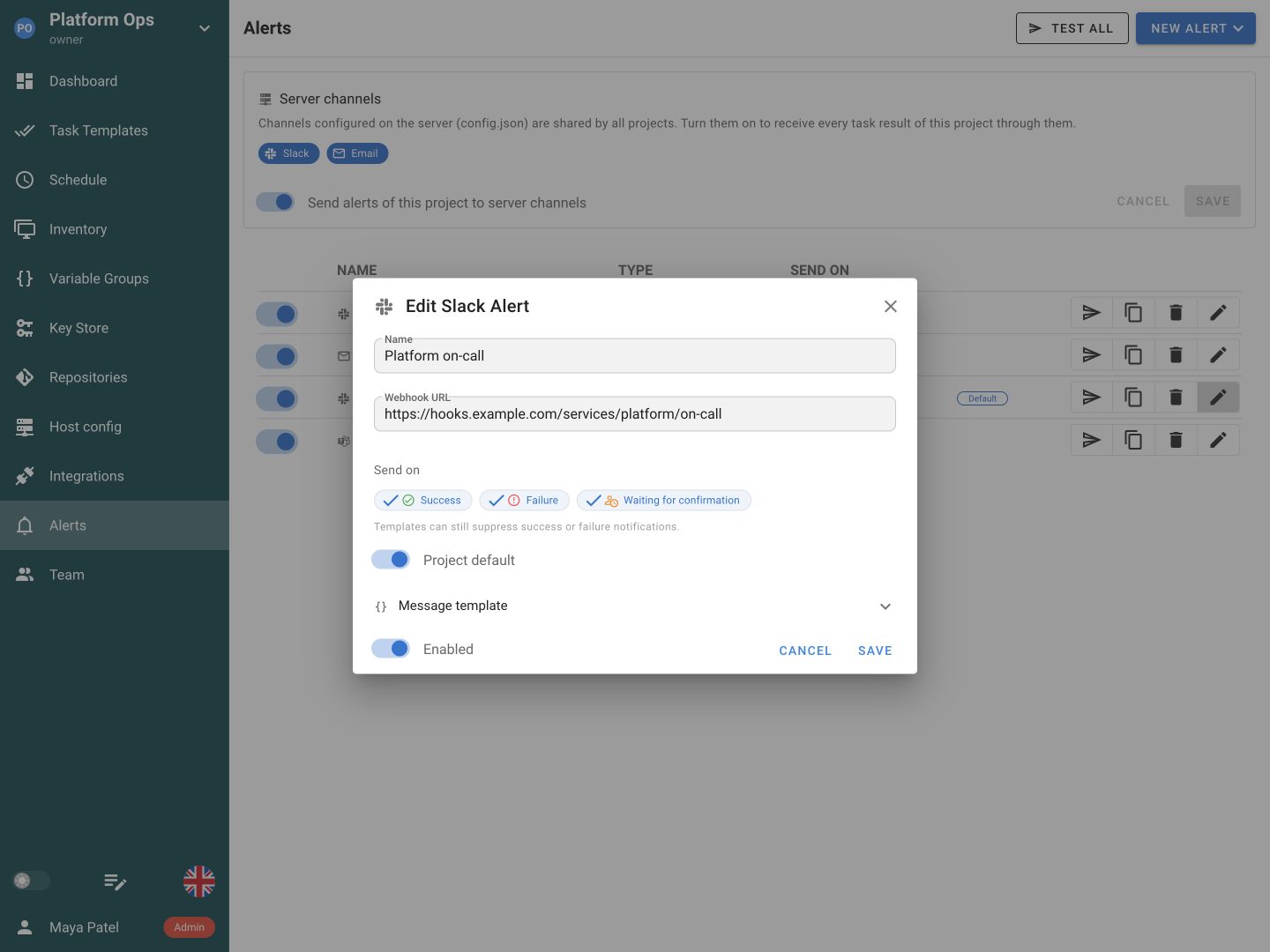
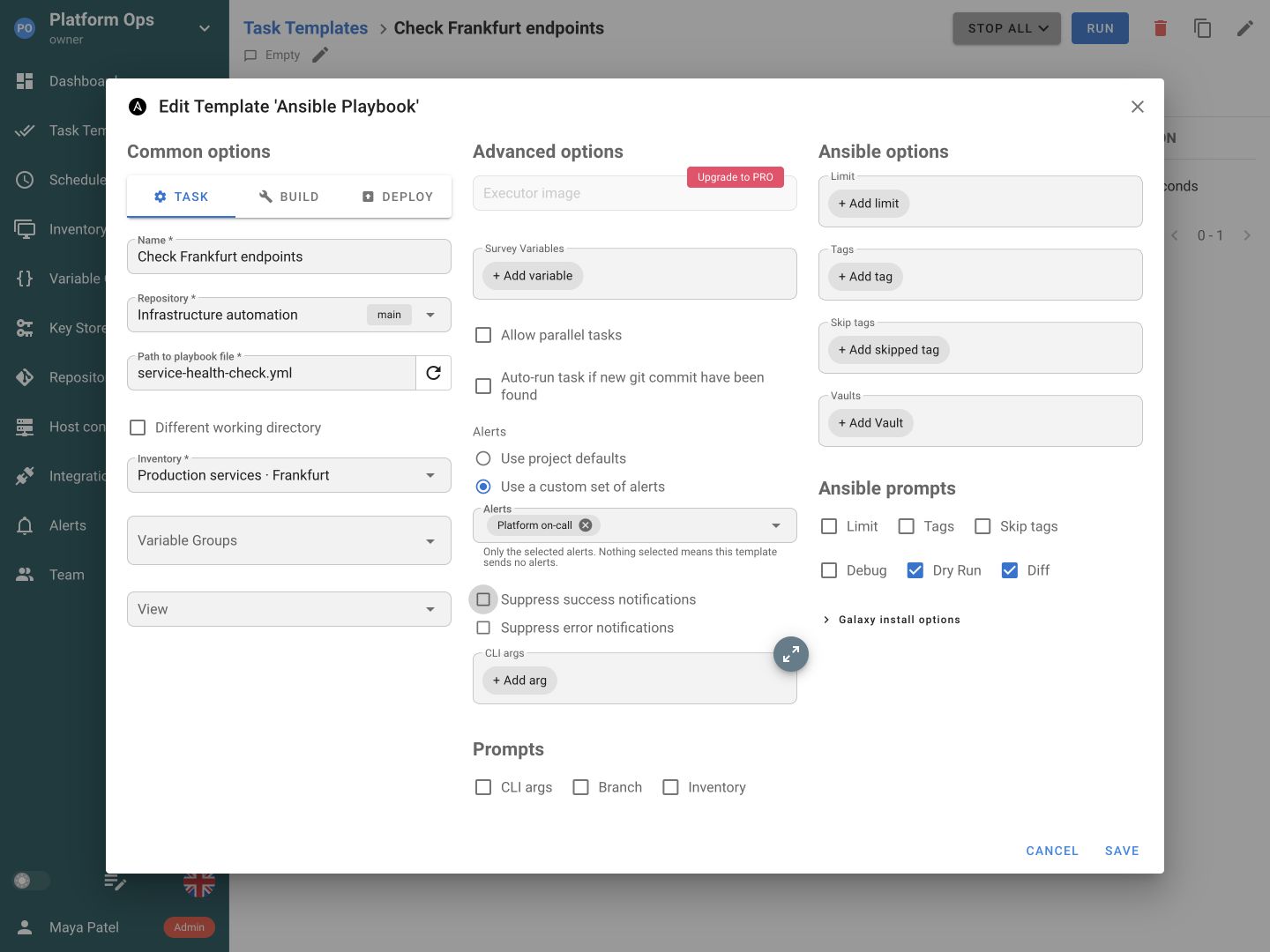
Use project defaults or select a custom set of alerts for a template. Schedules can inherit that selection or override it.
Use the channels your team already checks
Choose where task alerts go and which events each destination receives.
Email
Slack
Microsoft Teams
Telegram
Rocket.Chat
DingTalk
Gotify
Go from an alert to the next action
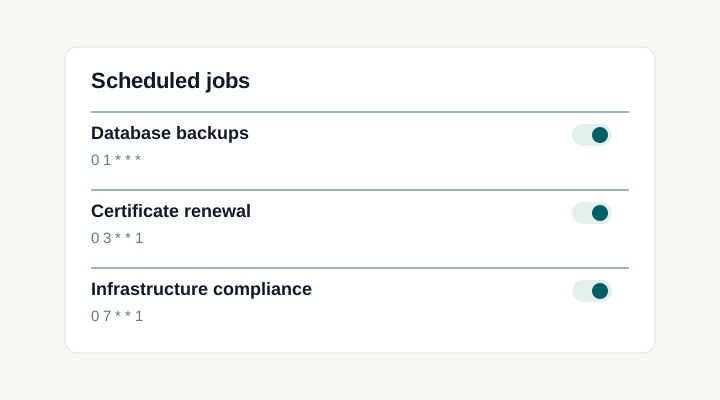
Keep routine work visible
SchedulesSend useful alerts with less routine noise
Reuse destinations across jobs
Create named project alerts for Slack, Teams and other supported channels. Store the destination and credential reference once, then use it across Task Templates. Shared server channels remain available for teams that manage delivery centrally.
Send the events that need attention
Choose success, failure or waiting-for-confirmation events for supported chat destinations. Suppress routine successful results at the template when they add noise. Email task alerts report failures, so select the channel as well as the event to fit the job.
Choose alerts per template or schedule
Use project defaults for a consistent setup, or select a custom set of project alerts for a template. A schedule can inherit that selection or override it. Keep a noisy test job separate from the destinations that watch recurring production work.
Link the message to the execution
Customize project-alert messages with Go templates and task context. Include a task URL so an engineer can open the output, timings and result. Test each destination from the Alerts page before depending on it for important automation.
Documentation and related features
FAQ
Which notification channels can Semaphore use?
Semaphore supports SMTP email, Slack, Microsoft Teams, Telegram, Rocket.Chat, DingTalk and Gotify. Configure shared server channels or named project alerts for the destinations your team watches. Provider credentials can be referenced from the Key Store. Use the channel setup guide and send a test message before relying on delivery for scheduled operations.
Can different jobs notify different Slack or Teams channels?
Yes. Create named alerts in the project with the destinations and events you need. Task Templates can inherit the project defaults or select a custom set of alerts. This lets teams route different jobs to different channels while keeping the destination configuration reusable across templates. Schedules can inherit the template selection or override it.
Can I notify the team only when a task fails?
Choose failure events for the relevant project alert. Task Templates also provide success and error suppression controls, so routine successful checks do not have to fill the team channel. Waiting-for-confirmation alerts are handled separately. Review both the destination event selection and template settings when deciding which results should produce a message.
How can I test an alert without running a playbook?
Use Send test message for an individual project alert, or Test all to check the configured project destinations. Neither action needs to launch infrastructure automation. After confirming receipt, run a harmless task to check the actual event rules and the link back to its result. Repeat the test when changing credentials or webhook URLs.
Why did my task finish without sending an alert?
Check that the destination is enabled, its credentials are valid, and the selected events include the task result. Review whether the template inherits project defaults, uses a custom alert set, or suppresses that result. For scheduled tasks, also check the schedule override. An empty custom selection can intentionally disable project-alert delivery for that job.
Can I customize notification messages?
Named project alerts support Go template messages with task context, including a task URL and the trigger type. Use that context to help colleagues identify the job and open the execution record. Keep messages concise and avoid including sensitive values. The alert reports the event; incident ownership and escalation remain part of your team process.
Can scheduled patching and certificate checks send failure alerts?
Yes. Scheduled tasks use their configured alert selection, inherited from the Task Template or overridden on the schedule. A failed Ansible patching job, backup check or certificate renewal can bring the result to the team without someone watching the dashboard. Open the linked task to inspect its output and execution details.
Do email and chat alerts report the same events?
Their supported events differ. Email task alerts report failures, while supported chat channels can also report success and waiting-for-confirmation events. Select the events relevant to each project destination and review template suppression settings. A notification is a route to the task evidence, rather than a replacement for inspecting the result or managing an incident.