

Check Windows services and certificates
Schedule your script to check required services or expiring certificates. Use meaningful output and exit codes so a failed check can alert the team.
Schedule Windows checksRun your .ps1 scripts from Semaphore with saved inputs and a Windows execution environment. Schedule routine administration and keep the output of every run.


The script is only part of the setup. Installed modules, environment values and access to Windows systems also need to be ready for the next person.
Schedule your script to check required services or expiring certificates. Use meaningful output and exit codes so a failed check can alert the team.
Schedule Windows checksUse your reporting scripts with the required modules and account access. Schedule collection and write reports to the destination your process uses.
Set up a scheduleKeep your maintenance script in Git and configure its environment inputs. Let colleagues launch the saved operation from the UI.
Share a prepared jobThe template selects a Git repository and the .ps1 entry point, keeping the script reviewable and the job named.
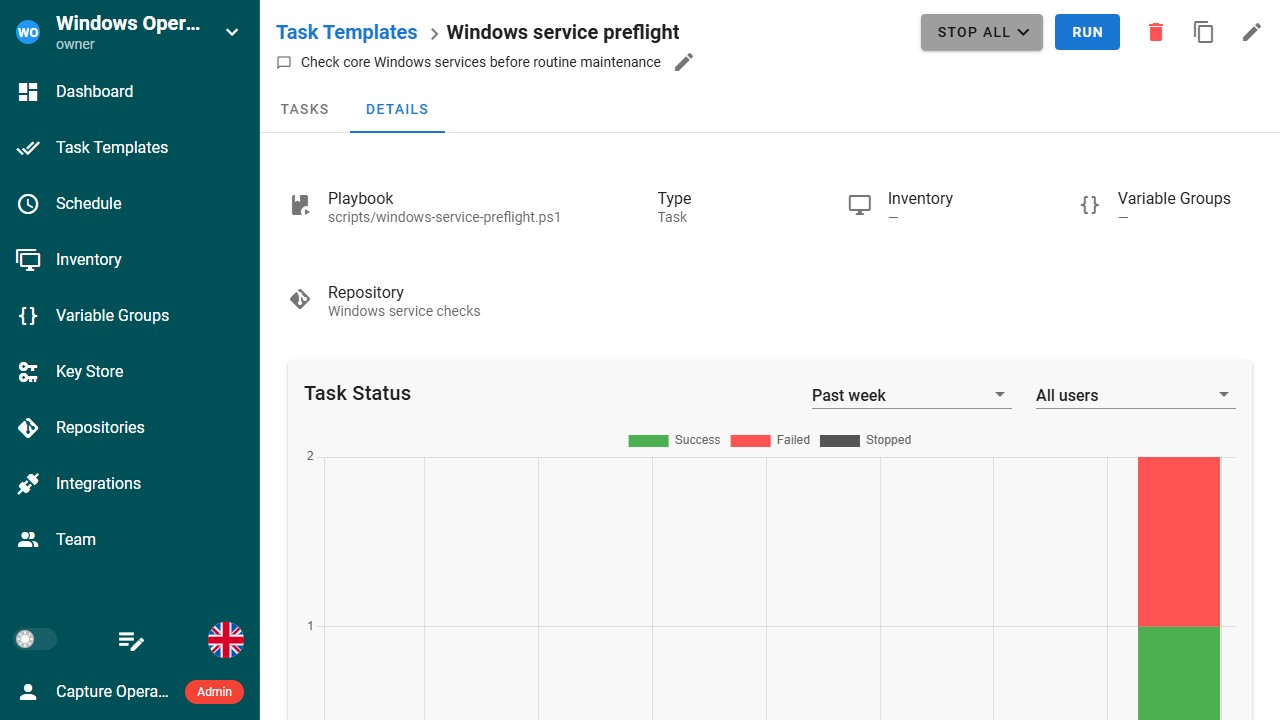
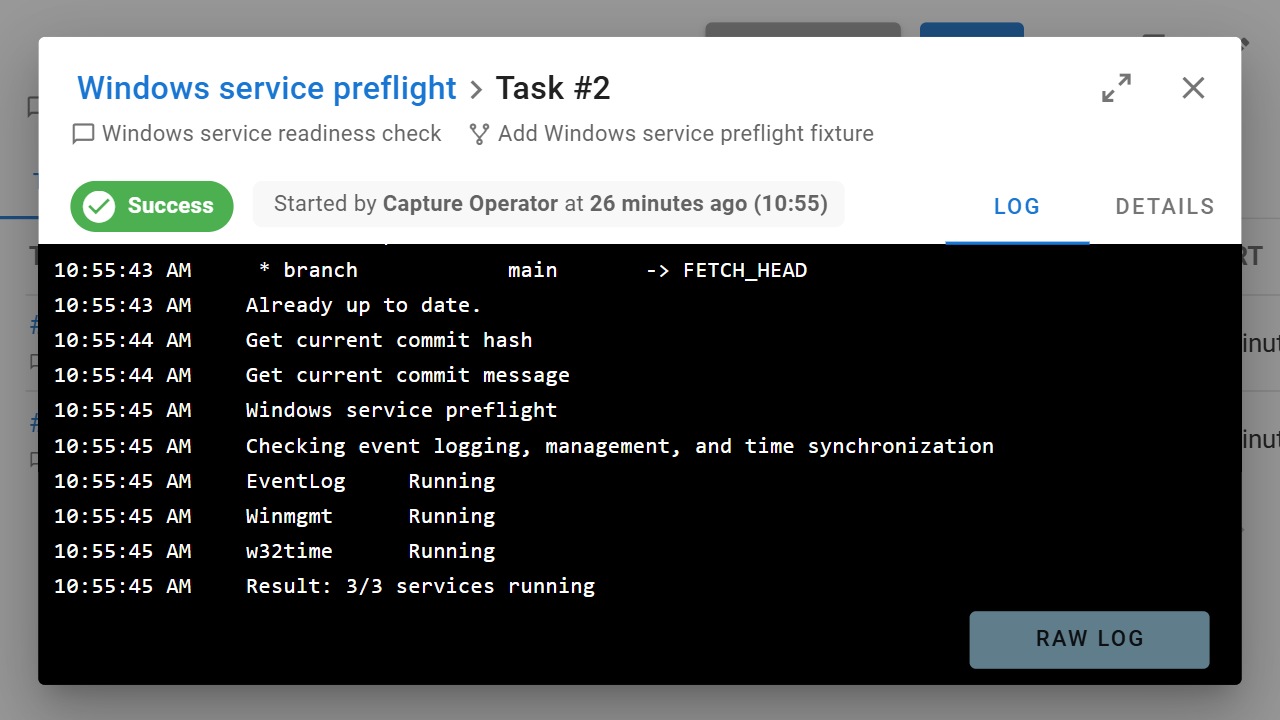
Run it on a Windows server or runner prepared with the required modules and access. Semaphore keeps the status and log.
Jack Henry & Associates describes using Semaphore across a fleet of more than 10,000 Windows servers, with runners and support for PowerShell alongside other automation tools. Sasha K., Senior Systems Engineer, shares the experience in the published customer testimonial.
Read the Jack Henry testimonialProvision the Windows environment with Terraform, run your PowerShell configuration or maintenance script, then check the application with Python.
 Provision Windows systems
Run Windows maintenance
 Check the application
 Collect diagnostics
PowerShell Task Templates require a Windows runner or a Semaphore server running on Windows. Install the modules and configure the network and account access your script needs.
Select the repository and .ps1 path. Variable Groups inject environment variables that your script can read with $env:VARIABLE_NAME.
Collect inputs before execution rather than waiting for terminal prompts. Exit with 0 for success or a non-zero code for failure, and print enough output to diagnose the result.
Run a saved template manually or on a schedule. Retain each task’s output and configure notifications for the outcomes your team needs to follow.
Yes. Create a PowerShell Task Template, select its repository and .ps1 entry point, and attach Variable Groups for runtime configuration. The script stays versioned in Git. Run it on a Windows environment prepared with its modules and access.
Yes. The documented setup uses either a Semaphore server running on Windows or a Windows runner. A Windows project runner lets you place execution where the required modules, domain access and target systems are available. Project runners require Pro.
No. Prepare those dependencies in the environment that executes your script. The template selects the source and execution inputs. Your PowerShell code and its runtime configuration determine how it connects to Windows systems and which actions it performs.
Run scripts non-interactively and print useful diagnostic output. Exit code 0 marks success, while a non-zero code marks the task as failed. Handle expected errors in the script so the exit status reflects whether the intended operation completed.
Yes. Save your check script in a PowerShell Task Template, configure its Windows execution environment and add a schedule. Your script determines which services or certificates to inspect. Configure task alerts to notify the team about failed checks.
Yes. A Workflow can connect their Task Templates so provisioning, Windows administration and system configuration happen in the required order. Add outcome conditions and separate verification jobs. Each script or playbook retains its own execution environment and inputs.
Yes. Keep the .ps1 file versioned in Git and configure the reusable Task Template. Assign project access that permits running the job without editing its setup. Colleagues can launch the prepared operation and review its output from the UI.
Attach Variable Groups to the Task Template. Their values are injected as environment variables that the script can read using PowerShell’s environment access. Store sensitive values in secret entries and configure the Windows account and module access separately.

