Tasks
A task is a single execution of a task template: one run of an Ansible playbook, a Terraform/OpenTofu/Terragrunt configuration, or a Bash, PowerShell, or Python script. Every task keeps its own log, status, and details, so you can always see what ran, when, by whom, and with which revision of the repository.
Starting a task
You need the Task Runner role or higher in the project (see Teams). Start a task in one of two places:
- In Task Templates, click the play button in the row of the template.
- On the template page, click the button in the top right corner. Its label depends on the template type: Run, Build, or Deploy.
Both open the New Task dialog. Its content depends on the application and on the options enabled in the template.
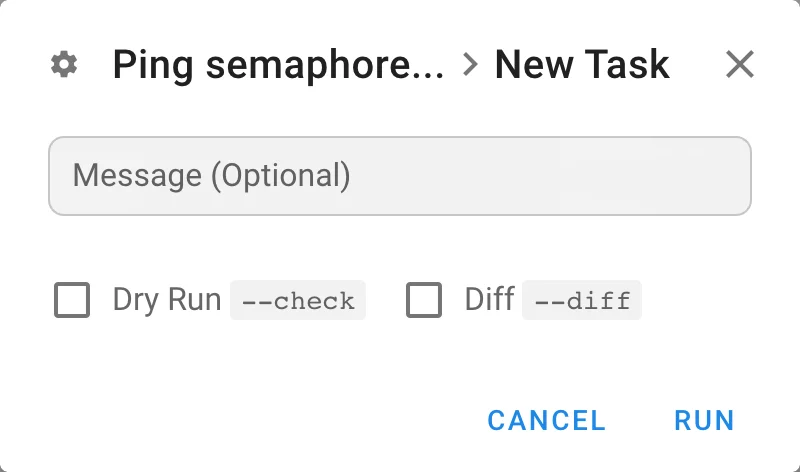
| Field | Shown for | Description |
|---|---|---|
| Message | all templates | Optional note stored with the task and shown in history and alerts. |
| Build Version | deploy templates | Which build to deploy. The latest successful build is selected by default. See Build and deploy templates. |
| Survey variables | templates with survey variables | One input per variable; required variables must be filled. |
Dry Run --check, Diff --diff | Ansible | Run the playbook in check mode or show file changes. Other Ansible prompts (Limit, Tags, Skip tags, Debug) appear when enabled in the template, see Prompts. |
| Plan, Destroy, Auto Approve, Upgrade, Reconfigure | Terraform, OpenTofu, Terragrunt | Run plan only, add -destroy, -auto-approve, -upgrade, or -reconfigure. See Terraform/OpenTofu. |
| Branch, Inventory, CLI args | any application | Override the template values for this run. Each override must be allowed in the template settings. |
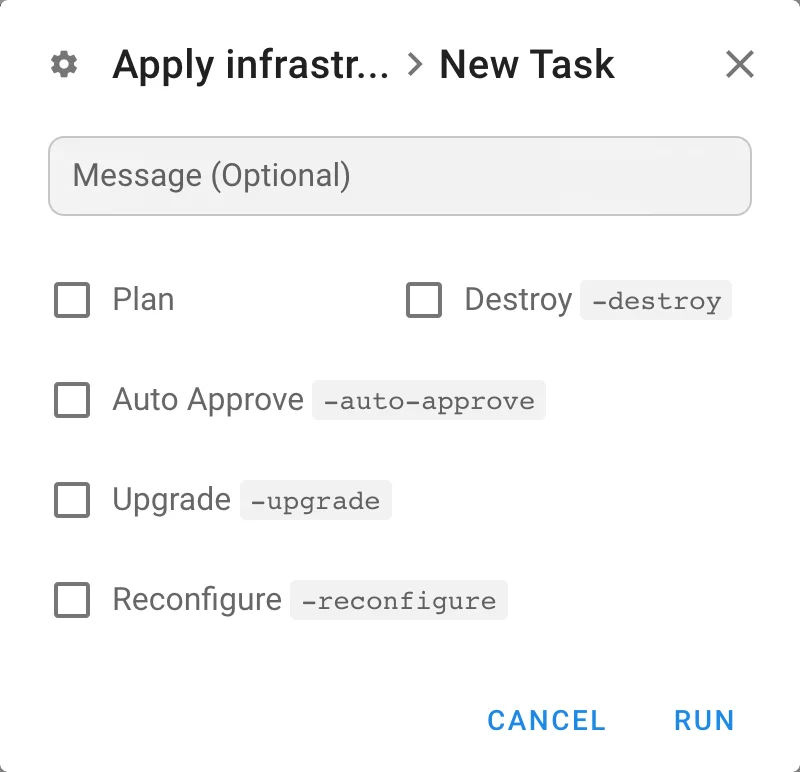
Click Run (or Build / Deploy) to put the task into the queue.
Queue and parallel execution
Tasks of the same template run one after another unless Allow parallel tasks is enabled in the template. The project can also limit the total number of running tasks with Max number of parallel tasks in project settings. A task that has to wait stays in the waiting status and starts automatically when a slot is free.
Task window
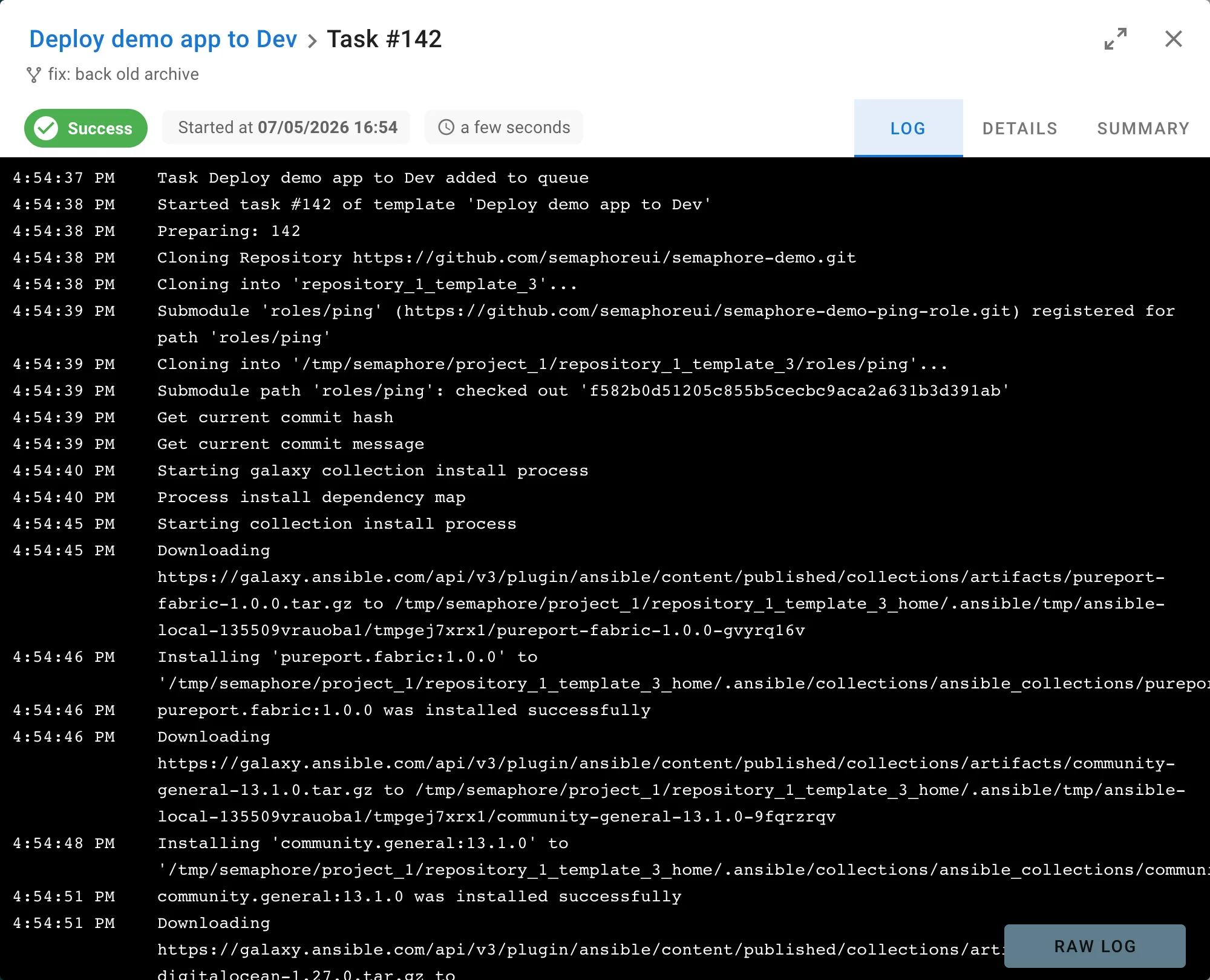
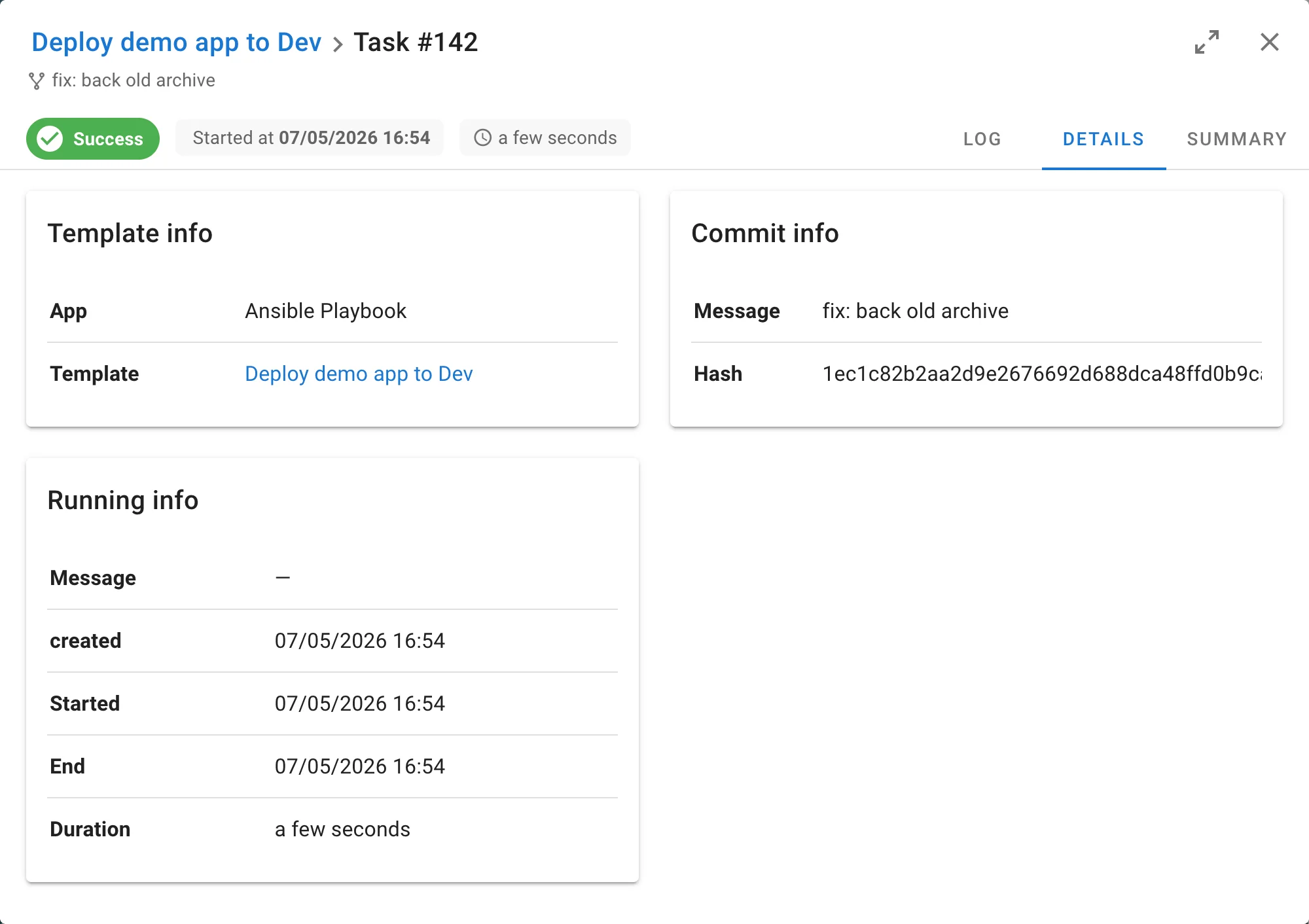
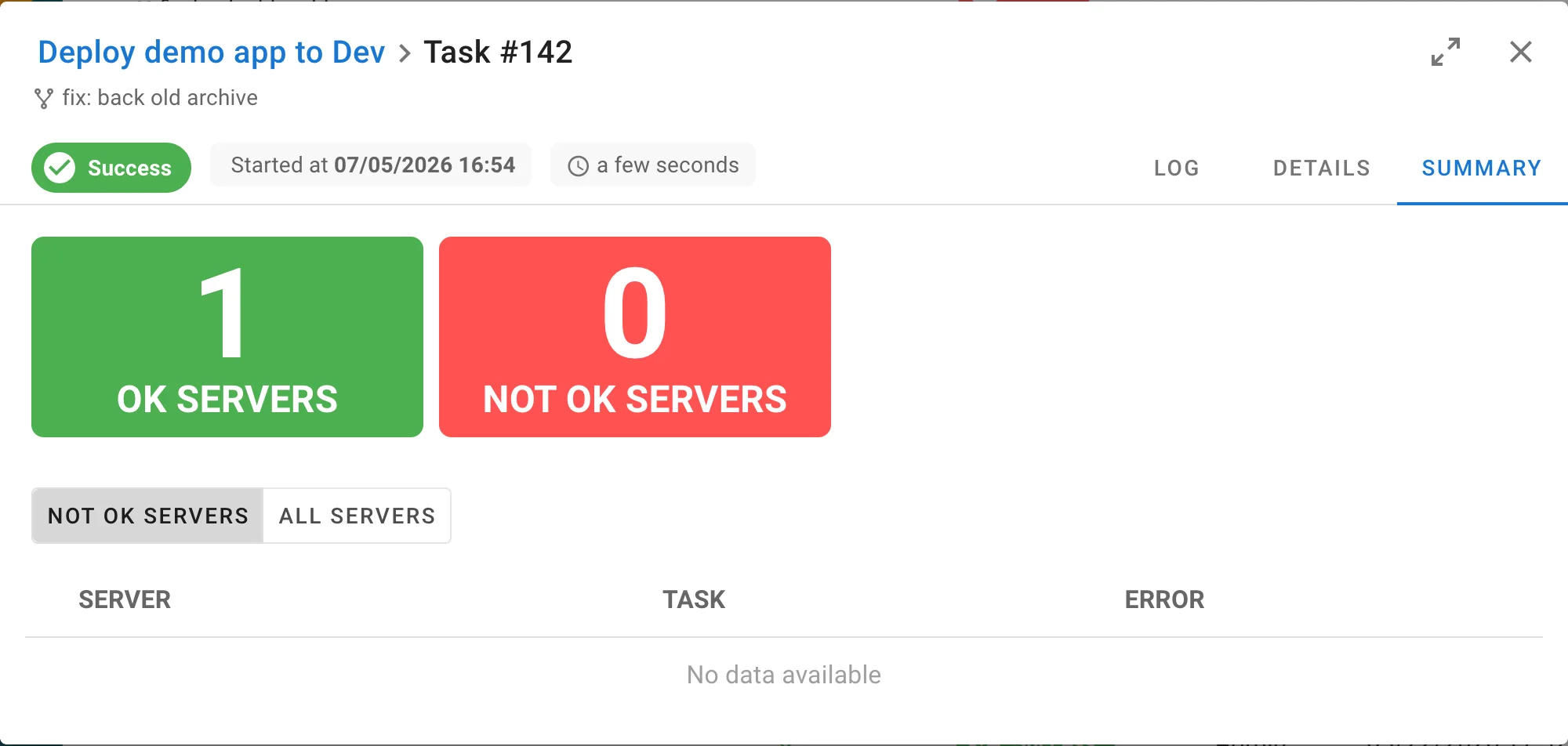
Clicking a task anywhere in the UI opens the task window. The header shows the template, the task number, the commit message of the repository revision, the status badge, who started the task and when, and the duration. The arrows icon expands the window to full screen.
| Tab | Content |
|---|---|
| Log | Live output of the task with timestamps. The log is streamed while the task runs. Raw log opens the unprocessed output in a new browser tab. |
| Details | Template info (application, template), commit info (message and hash), and running info: message, created, started, and end time, duration, and, when set, the runner, branch, limit, and variables used for the run. |
| Summary (Pro) | For Ansible tasks: how many hosts finished OK and how many failed, with a table of failed tasks per server. |
Task statuses
| Status | Meaning |
|---|---|
waiting | The task is in the queue: another task of the same template is running, the project limit is reached, or no runner is available yet. |
starting | A runner picked the task and is preparing the repository and the environment. |
waiting_confirmation | The tool asked a question and waits for a user, for example terraform apply without Auto Approve or a script that reads input. Use Confirm or Reject in the task window. |
confirmed | A user confirmed the question; the task continues. |
rejected | A user rejected the question; the task ends. |
running | The playbook or script is executing. |
stopping | A stop was requested and the process is being terminated. |
stopped | The task was stopped by a user. |
success | Finished with exit code 0. |
error | Finished with a non-zero exit code or failed to start. Shown as Failed in the UI. |
Stopping tasks
Open the task window of a running task and click Stop. Semaphore sends a termination signal and the task goes to the stopping status while the process exits. If the process does not react, the button changes to Force Stop; click it to kill the process immediately.
To stop every running and queued task of one template, open the template page and use Stop all. The dropdown offers both Stop and Force stop.

Running a task again
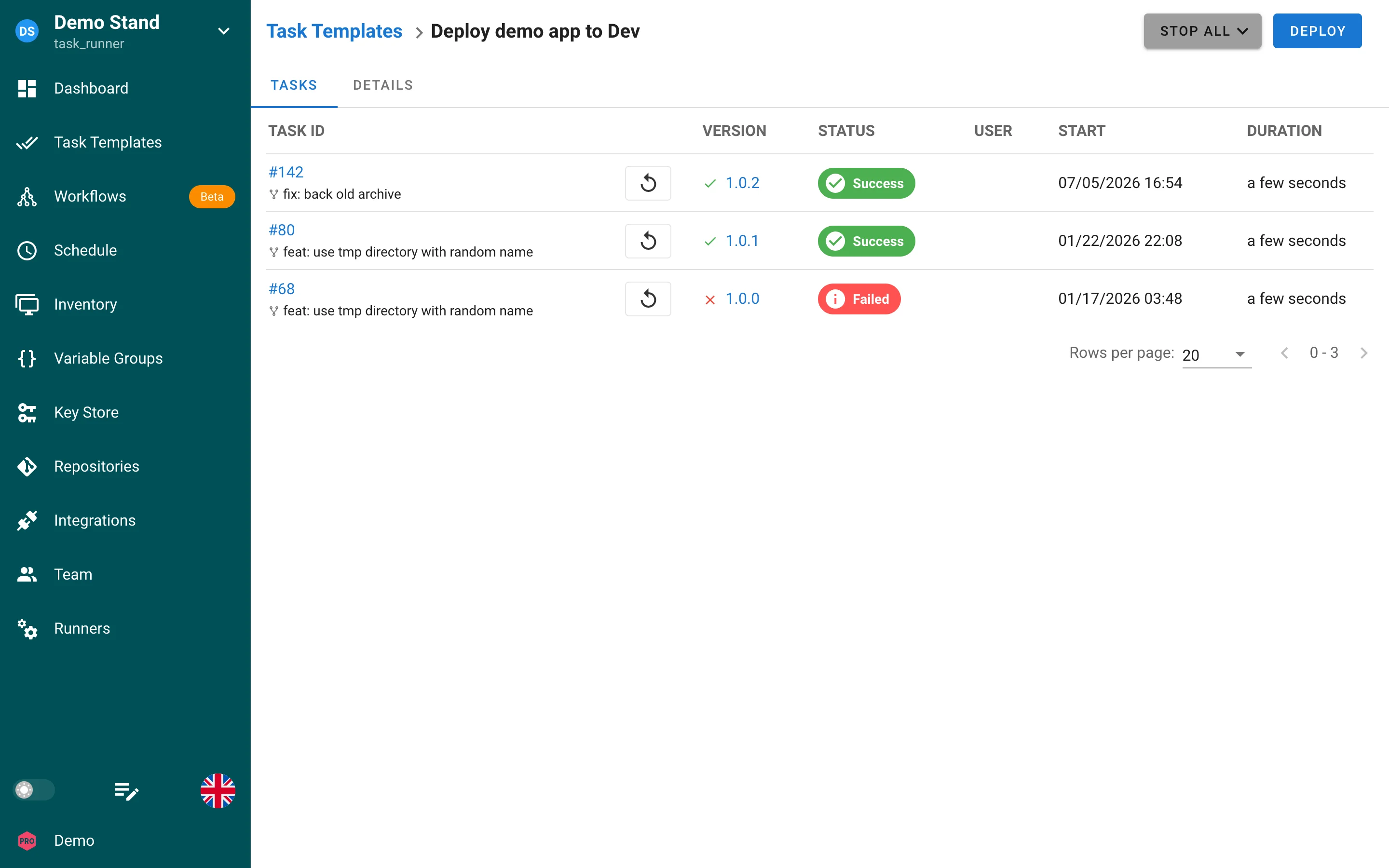
On the Tasks tab of a template every row has a rerun button. It opens the New Task dialog with the message and parameters of that task filled in.
Where tasks are listed
- Dashboard → History: all tasks of the project, see History.
- Template page → Tasks: tasks of one template.
- Task Templates: expand a row with the arrow on the left to see the latest tasks of the template without leaving the list.
Environment variables
Every task, whatever its app (Ansible, Terraform, Bash, PowerShell, Python), receives variables that identify it in Semaphore:
| Variable | Value |
|---|---|
SEMAPHORE_TASK_ID | ID of the task |
SEMAPHORE_PROJECT_ID | ID of the project the task belongs to |
SEMAPHORE_WORKFLOW_ID | ID of the workflow, when the task is a node of a workflow run |
SEMAPHORE_WORKFLOW_RUN_ID | ID of the workflow run the task belongs to |
SEMAPHORE_WORKFLOW_URL | Link to the workflow run page (requires web_host in the server config) |
SEMAPHORE_OUTPUTS_FILE | Path of the file a workflow task writes its outputs to |
The workflow variables are absent when the task was not started by a workflow.
Other variables are set in specific cases:
SEMAPHORE_TASK_TYPE,SEMAPHORE_TASK_INCOMING_VERSION,SEMAPHORE_TASK_TARGET_VERSIONand theSEMAPHORE_TASK_DETAILS_*family for Build and Deploy templates.SEMAPHORE_JWTwhen the template issues a JWT.
Example for Bash:
echo "Task $SEMAPHORE_TASK_ID of project $SEMAPHORE_PROJECT_ID"
if [ -n "$SEMAPHORE_WORKFLOW_RUN_ID" ]; then
  echo "Started by workflow run: $SEMAPHORE_WORKFLOW_URL"
fi
Log retention
Tasks and logs are kept forever by default. Use max_tasks_per_template to keep only the latest tasks of each template, see History.