Rasporedi
Funkcija rasporeda (Schedule) u Semaphore-u omogućava automatsko izvršavanje šablona (na primer pokretanja playbook-ova) u unapred definisanim intervalima. Ova funkcija omogućava da implementirate rutinske zadatke automatizacije, kao što su redovne rezervne kopije, provere usaglašenosti, ažuriranja sistema i drugo.
Obavezno ponovo pokrenite Semaphore servis nakon izmena da bi one stupile na snagu.
Podešavanje vremenske zone
Funkcija rasporeda podrazumevano radi u vremenskoj zoni UTC. Međutim, to se može prilagoditi vašoj lokalnoj vremenskoj zoni ili posebnim zahtevima.
Vremensku zonu možete promeniti izmenom konfiguracionog fajla ili postavljanjem promenljive okruženja:
-
Pomoću konfiguracionog fajla:
Dodajte ili izmenite poljetimezoneu konfiguracionom fajlu Semaphore-a:{
"schedule": {
"timezone": "America/New_York"
}
} -
Pomoću promenljive okruženja:
Postavite promenljivu okruženjaSEMAPHORE_SCHEDULE_TIMEZONE:export SEMAPHORE_SCHEDULE_TIMEZONE="America/New_York"
Listu važećih vrednosti vremenskih zona potražite u IANA bazi vremenskih zona.
Pristup funkciji rasporeda
- Prijavite se u veb interfejs Semaphore-a
- Otvorite karticu „Raspored" (Schedule) u glavnom navigacionom meniju
- Kliknite na dugme „Novi raspored" (New Schedule) u gornjem desnom uglu da biste kreirali novi raspored
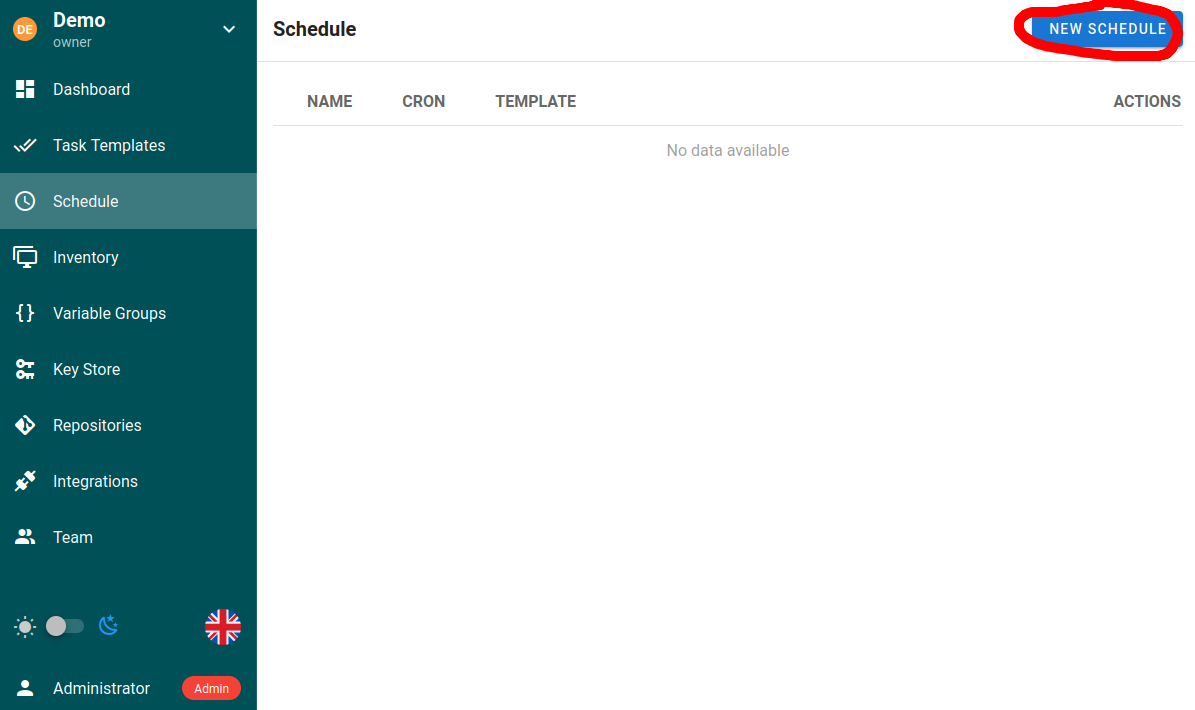
Kreiranje novog rasporeda
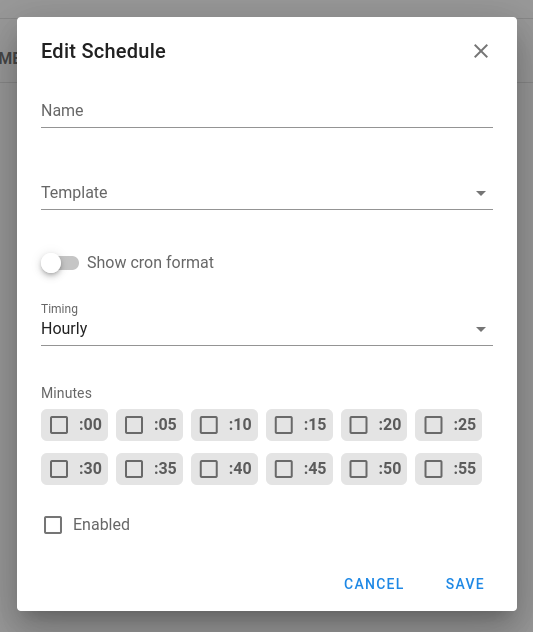
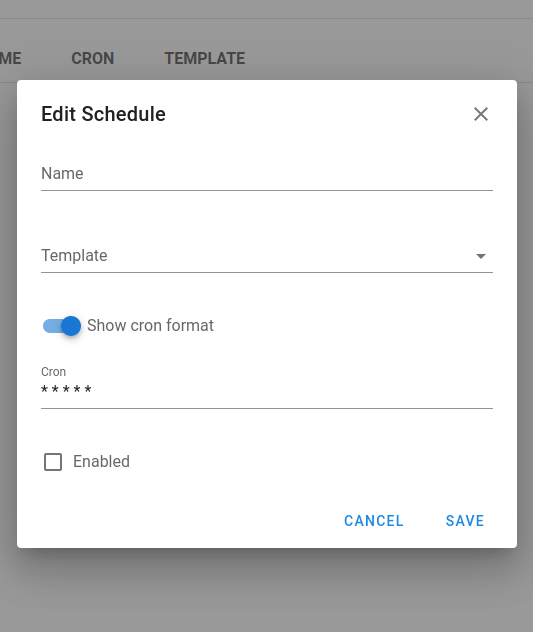
Prilikom kreiranja novog rasporeda potrebno je da podesite sledeće opcije:
| Polje | Opis |
|---|---|
| Naziv | Opisni naziv zakazanog zadatka |
| Šablon | Konkretan šablon zadatka (Task Template) koji se izvršava |
| Vreme | U cron formatu radi veće fleksibilnosti ili pomoću ugrađenih opcija za uobičajene intervale |
Obaveštenja
Raspored može da koristi obaveštenja svog šablona ili drugačiji skup obaveštenja projekta, tako da zadaci pokrenuti rasporedom prijavljuju na drugo mesto nego ručna pokretanja. Pogledajte Obaveštenja rasporeda.
Sintaksa cron formata
Raspored koristi standardnu cron sintaksu sa pet polja:
┌─────── minute (0-59)
│ ┌────── hour (0-23)
│ │ ┌───── day of month (1-31)
│ │ │ ┌───── month (1-12)
│ │ │ │ ┌───── day of week (0-6) (Sunday=0)
│ │ │ │ │
│ │ │ │ │
* * * * *
Primeri:
*/15 * * * *- Pokretanje svakih 15 minuta0 2 * * *- Pokretanje svakog dana u 2:000 0 * * 0- Pokretanje nedeljom u ponoć0 9 1 * *- Pokretanje u 9:00 prvog dana svakog meseca
Veoma koristan generator cron izraza: https://crontab.guru/
Primeri upotrebe
Održavanje sistema
# Example playbook for system updates
---
- hosts: all
  become: yes
  tasks:
    - name: Update apt cache
      apt:
        update_cache: yes

    - name: Upgrade all packages
      apt:
        upgrade: yes

    - name: Remove dependencies that are no longer required
      apt:
        autoremove: yes
Zakažite ovaj playbook da se izvršava jednom nedeljno van radnog vremena kako bi sistemi ostali ažurni.
Rezervne kopije
Kreirajte rasporede za rezervne kopije baza podataka sa različitom učestalošću:
- Dnevne rezervne kopije koje se čuvaju nedelju dana
- Nedeljne rezervne kopije koje se čuvaju mesec dana
- Mesečne rezervne kopije koje se čuvaju godinu dana
Provere usaglašenosti
Zakažite redovna skeniranja usaglašenosti da biste obezbedili da sistemi ispunjavaju bezbednosne zahteve:
# Example compliance check playbook
---
- hosts: all
  tasks:
    - name: Run compliance checks
      script: /path/to/compliance_script.sh

    - name: Collect compliance reports
      fetch:
        src: /var/log/compliance-report.log
        dest: reports/{{ inventory_hostname }}/
        flat: yes
Priprema i čišćenje okruženja
Za razvojna ili testna okruženja. Zakažite kreiranje cloud okruženja ujutru i njegovo gašenje uveče radi optimizacije troškova.
Dobre prakse
- Koristite opisne nazive rasporeda koji ukazuju i na funkciju i na vreme izvršavanja (na primer „Weekly-Backup-Sunday-2AM")
- Izbegavajte istovremeno zakazivanje previše zadataka koji intenzivno koriste resurse
- Uzmite u obzir uticaj dugotrajnih zakazanih zadataka na druge rasporede
- Testirajte rasporede sa kratkim intervalima pre nego što podesite produkcione rasporede sa dužim intervalima
- Dokumentujte svrhu i očekivane rezultate zakazanih zadataka
Parametri zadatka
Rasporedi mogu prosleđivati parametre zadacima. Uključite upite (prompts) za potrebna polja u šablonu, a zatim definišite vrednosti parametara u podešavanjima rasporeda, tako da svako pokretanje dobije željene zamene (na primer granu, promenljive, zastavice).