团队
在 Semaphore UI 中,每个项目(Project)都关联一个团队(Team)。只有团队成员和管理员才能访问该项目。团队中的每个成员拥有一个或多个角色,角色决定了其访问级别以及可以执行的操作。成员可以执行其任一角色所允许的所有操作。
在 Enterprise 版中,内置角色可以通过自定义角色进行扩展,从而在特定模板上授予额外的细粒度权限。
为避免失去对项目的访问权限,建议至少有两名团队成员拥有 Owner 角色。
项目的 Team 分区有两个选项卡:Members(用户及其角色)和 Roles(自定义角色,Enterprise)。
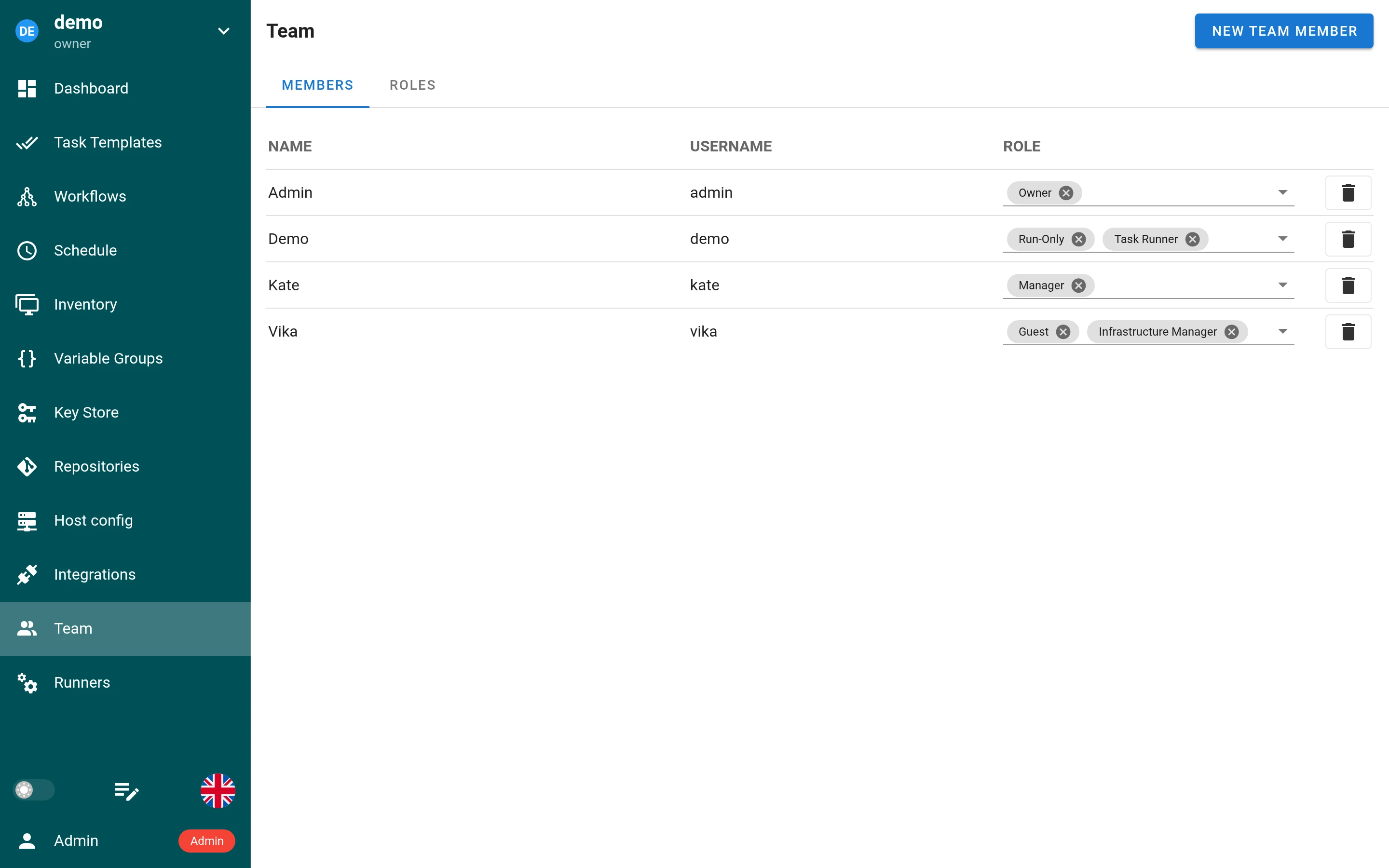
内置角色
四种内置角色如下:
- Owner(所有者)
- Manager(管理者)
- Task Runner(任务执行者)
- Guest(访客)
下面详细介绍每个角色及其权限。
Owner
-
完全权限
所有者可以在项目中执行任何操作,包括管理角色、添加/移除成员以及配置任何项目设置。 -
多个所有者
一个项目可以有多个所有者,以确保拥有完全权限的人不止一位。 -
最后一位所有者
项目不能没有所有者。因此,除管理员外,任何人都不能把最后一位所有者从项目中移除,也不能收回其所有者角色。最后一位所有者也不能自行退出项目。 -
管理其他所有者
所有者可以管理(包括移除或更改角色)所有团队成员,包括其他所有者。
Manager
-
**广泛的项目控制权:**管理者拥有与所有者几乎相同的权限,可以处理大多数日常任务并管理项目环境。
-
管理者不能:
- 删除项目。
- 移除所有者或更改所有者的角色。
-
**典型用例:**将 Manager 角色分配给需要广泛访问权限、但不需要删除项目或管理所有者权力的资深团队成员。
Task Runner
-
**运行任务:**任务执行者可以执行项目中存在的任何任务模板(Task Templates)。
-
**其他资源只读:**虽然可以运行任务,但他们对清单(Inventory)、变量、仓库(Repository)等其他资源只有只读访问权限。
-
**典型用例:**需要触发和监控任务、但不需要修改项目设置或管理团队成员的开发人员或 QA 工程师。
Guest
-
**只读访问:**访客对所有项目资源拥有只读访问权限(例如查看日志、清单、仪表盘)。
-
**无写入权限:**他们不能修改设置、运行任务或更改角色。
-
**典型用例:**只需要查看项目状态和详情而不做任何更改的利益相关方或其他协作者。
扩展 RBAC Enterprise
扩展 RBAC 在 Semaphore Enterprise 版中可用,从 Semaphore v2.17 开始提供。
扩展 RBAC 在四种内置角色之上叠加额外的权限。内置角色本身保持不变。如果你没有定义自定义角色,每个项目的行为与社区版完全一致。
借助扩展 RBAC,自定义角色可以授予单独的项目级权限。你还可以为角色授予对选定任务模板的权限。这样就可以让团队成员访问所需的模板,而无需将其提升到更高的内置角色。
自定义角色
自定义角色是您自己创建的角色,权限由您选择。您可以像内置角色一样把它授予成员。成员可以只有自定义角色,也可以与内置角色一起拥有。
自定义角色有两种作用域:
- 全局角色在实例级别定义,可在任何项目中使用。
- 项目角色在单个项目内定义,仅在该项目中可用。
权限级别
自定义角色在两个级别授予权限:
- 项目级权限在整个项目范围内扩展用户的访问权限。你在创建角色时选择这些权限。
- 模板权限控制对某一个任务模板的操作。将角色添加到模板后,在该模板的 Permissions 选项卡中选择这些权限。
创建自定义角色
在打开角色表单之前,先选择作用域。
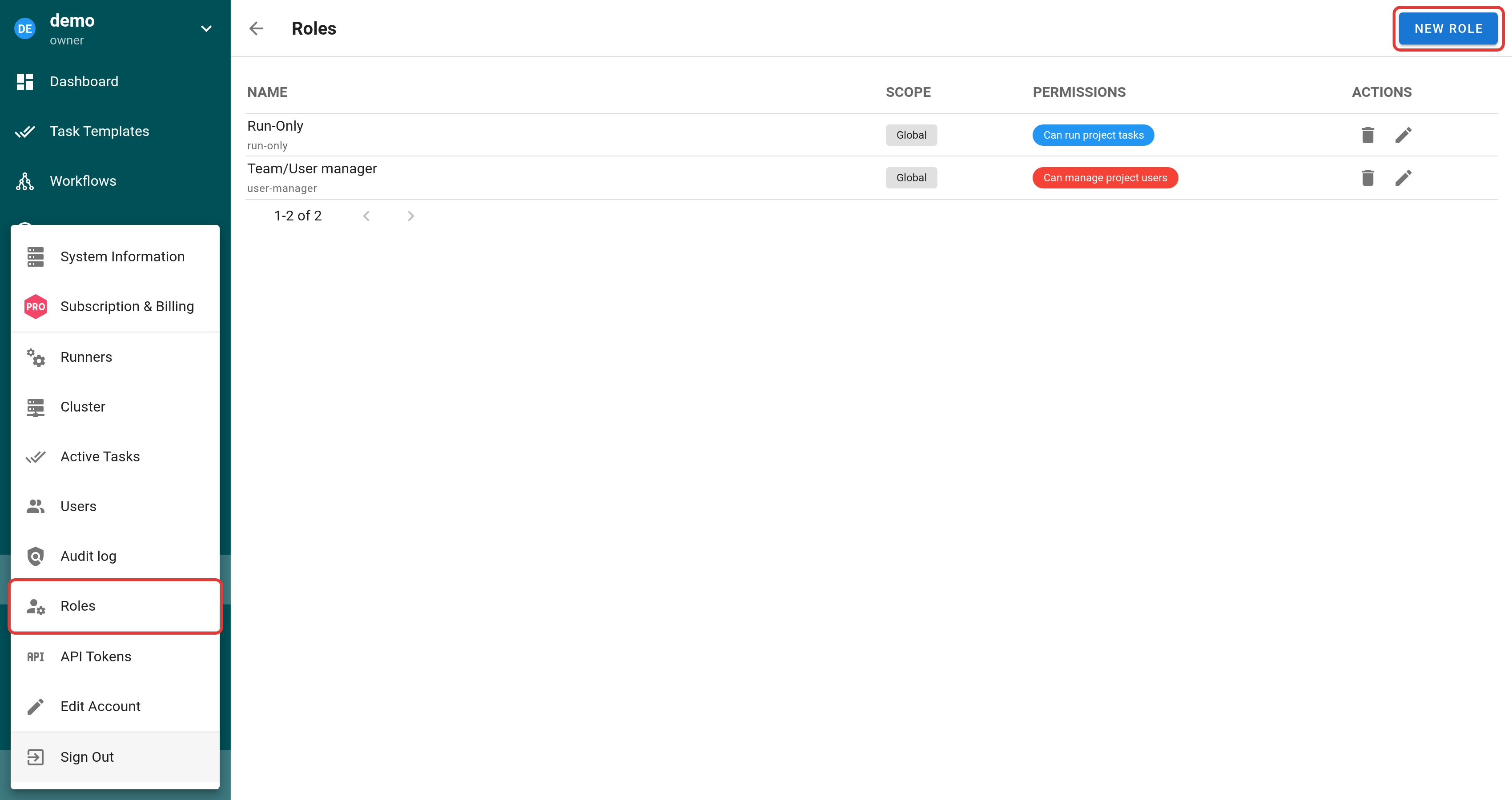
全局角色
全局角色只需创建一次,即可分配给任何项目中的用户。只有实例管理员才能创建全局角色。
打开左下角的管理员菜单,选择 Roles。
在实例范围的角色列表中,选择 New Role。
项目角色
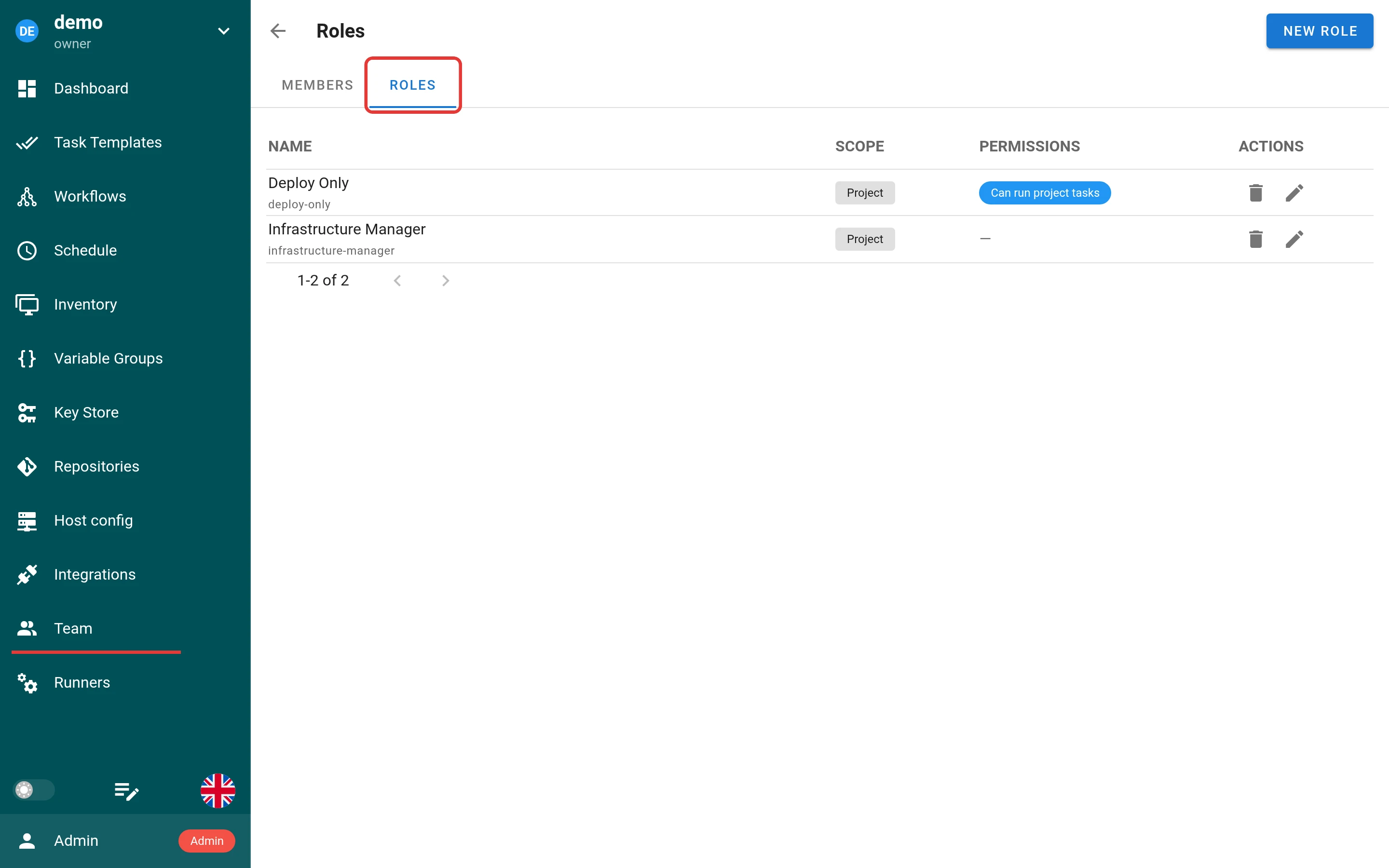
项目角色仅在创建它的项目中可用。项目所有者和管理者可以创建项目角色。
- 打开项目,进入 Team > Roles。
- 选择 New Role。
在创建第一个项目角色之前,Roles 选项卡是空的。它列出所有项目角色,并包含 New Role 按钮。
配置自定义角色
两种路径打开的是同一个角色表单。根据团队成员所需的访问权限配置角色。
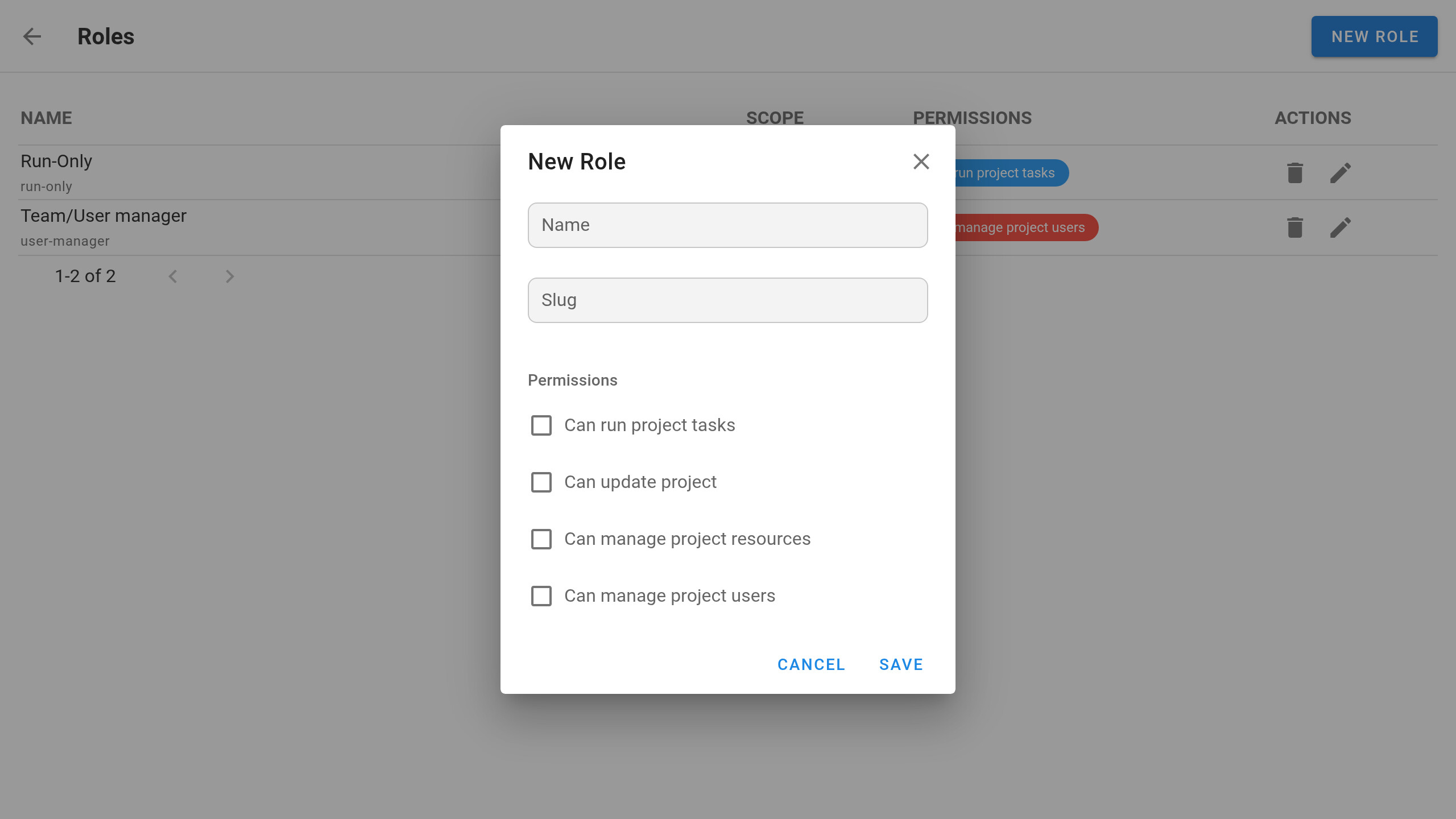
| 字段 | 说明 |
|---|---|
| Name | 角色的可读名称。 |
| Slug | 用于引用该角色的唯一技术标识符。可以包含字母、数字、_ 和 -,最多 100 个字符,例如 release_operator。不区分大小写:Ops 和 ops 是同一个 slug。角色创建后无法更改 slug。 |
| Permissions | 该角色授予的项目级权限。 |
项目级权限
只选择该角色需要的项目级权限:
| 权限 | 说明 |
|---|---|
| Can run project tasks | 运行项目任务。 |
| Can update project | 在 Dashboard > Settings 中编辑项目的基本信息。 |
| Can manage project resources | 管理项目资源,例如任务模板、仓库、清单、环境、密钥库(Key Store)条目、计划任务(Schedule)、集成(Integration)和运行器(Runner)。这是项目范围的访问权限,不能限制到单个非模板资源。 |
| Can manage project users | 管理项目成员及角色分配。 |
项目级权限不能限制到单个清单、仓库、环境或密钥库条目。任务模板是唯一支持细粒度角色分配的资源类型。
要创建只对选定任务模板增加访问权限的细粒度角色,请不要勾选任何项目级权限。这样该角色本身不会增加任何项目级权限。然后将其添加到所需的模板,并只选择该角色在那里需要的操作。
角色配置完成后,选择 Save。
配置对特定任务模板的访问权限
模板权限在选定的任务模板上增加访问权限。下面的示例使用一个没有项目级权限的自定义角色。当团队成员只需要对选定模板执行某些操作时,这种最小权限配置非常有用。你也可以为已经授予项目级访问权限的角色添加模板权限。
打开所需的模板
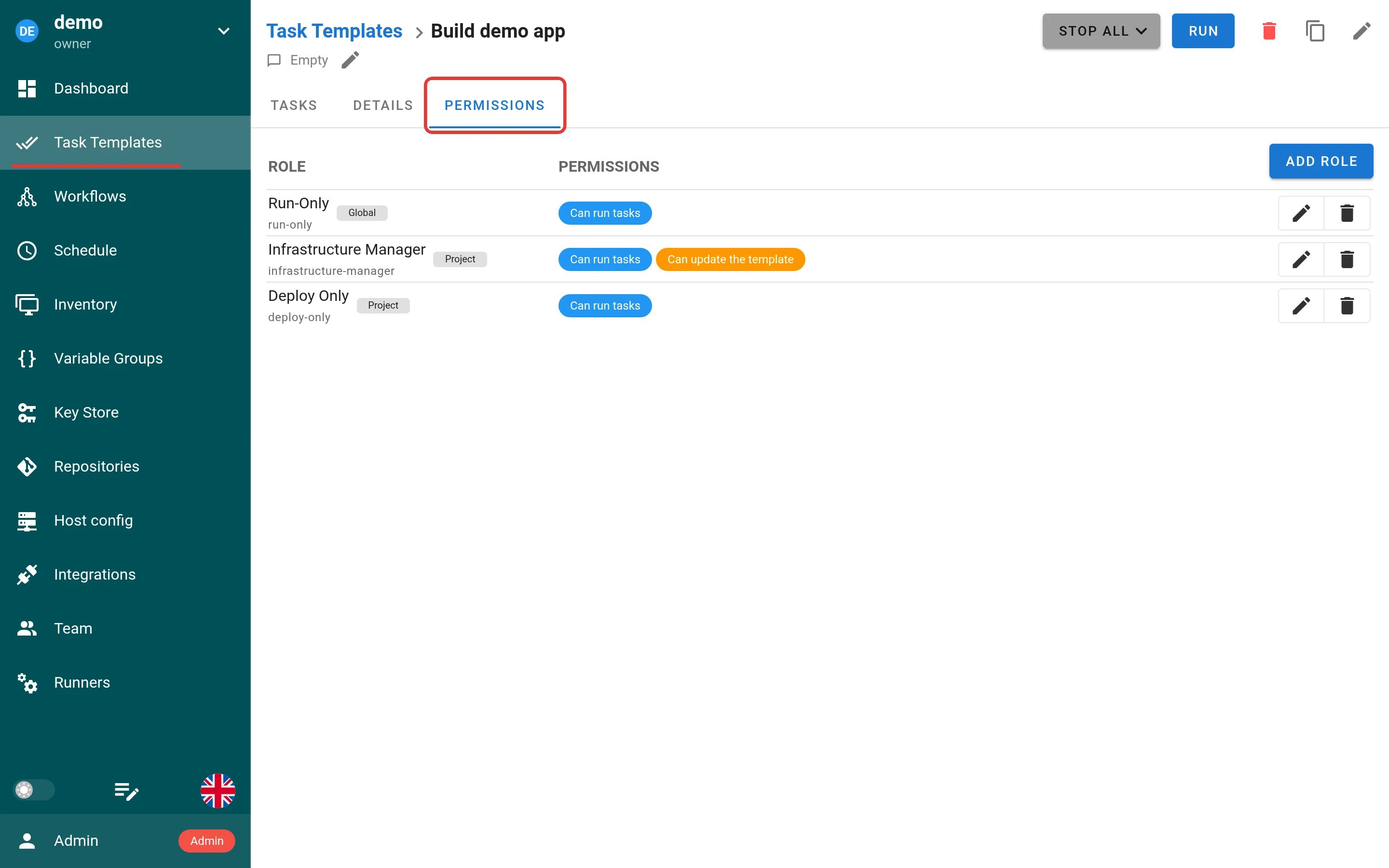
- 打开 Task Templates,选择目标模板。
- 打开 Permissions 选项卡。
Permissions 选项卡列出已添加到该模板的角色。
添加角色并授予模板权限
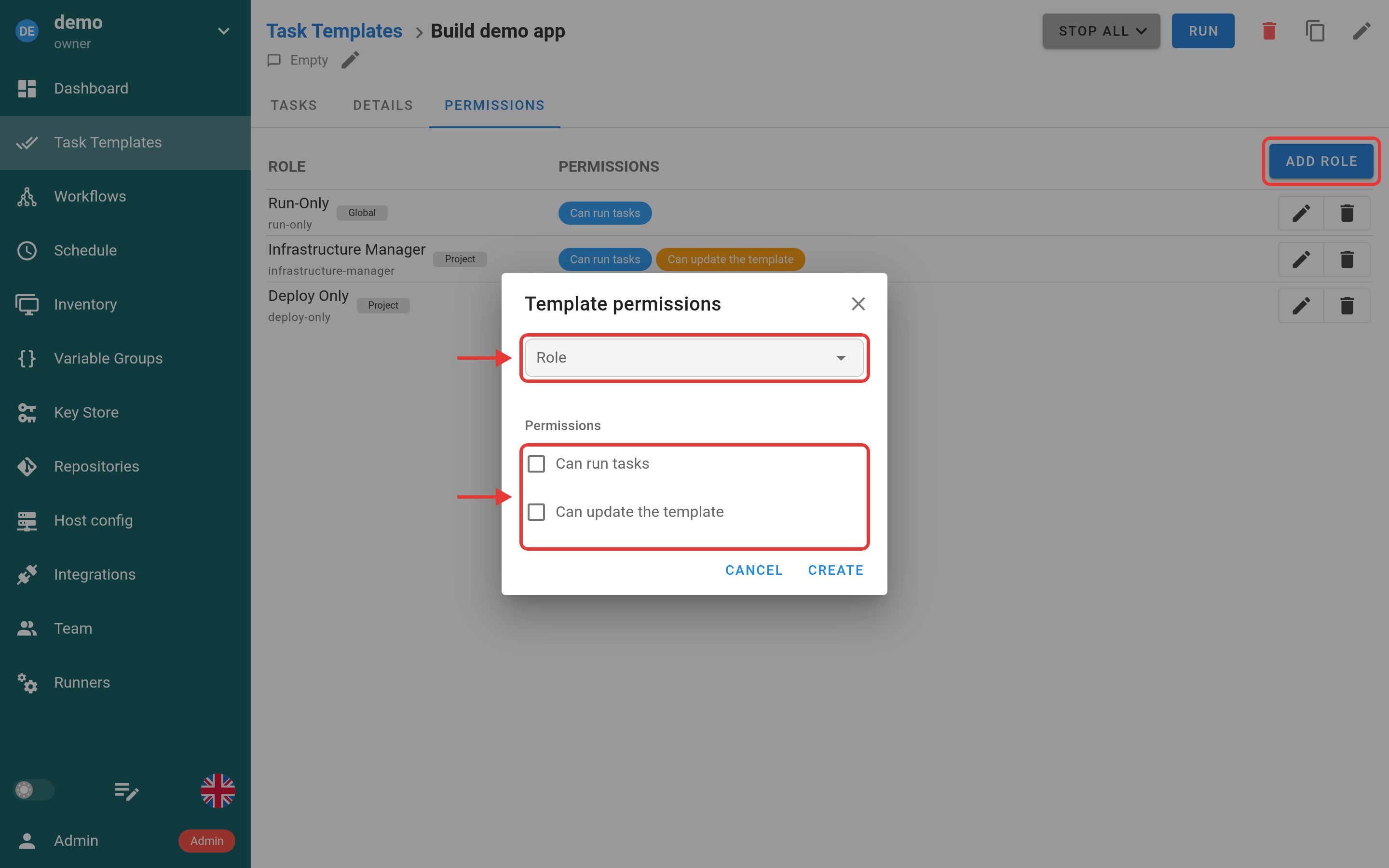
- 选择 Add Role,然后选择要添加到此模板的自定义角色。
- 只选择该角色需要的模板权限,例如 Can run tasks 或 Can update the template。
此示例使用之前创建的、没有项目级权限的角色。你可以选择项目中可用的任何自定义角色。
要为同一角色授予对其他模板的访问权限,请对每个模板重复以上步骤。
模板权限是叠加的。它们只增加访问权限,不会替代或削减用户内置角色或其他自定义角色带来的访问权限。如果用户已经可以运行或更新所有任务模板,添加特定模板的角色不会收窄该权限。
在项目中分配自定义角色
创建并配置好全局角色或项目角色后,将其分配给所需的团队成员:
- 打开项目,进入 Team。
- 选择所需成员旁边的角色字段。
- 选择自定义角色。一个成员可以有多个角色。
删除正在使用的角色
如果某个角色仍分配给成员,或在模板权限中使用,Semaphore 会在删除前询问,并显示受影响的成员、项目和模板权限的数量。选择 Delete with assignments 会删除该角色,并从所有这些对象上收回。没有其他角色的成员会被移出其项目。
如果有组映射使用该角色,对话框还会显示组映射的数量。只有管理员才能删除这样的角色,该角色的组映射也会一起删除。
当前不支持的功能
- **非模板资源的细粒度权限。**目前只有模板可以在单个资源级别由自定义角色管控。
来自组映射的角色 Enterprise
组映射在 Semaphore Enterprise 版中可用。
管理员可以在 Group mappings 页面上,为身份提供方中某个组的所有成员授予项目角色。用户每次通过身份提供方登录时,Semaphore 都会更新这些角色。参见根据组授予项目角色。
在 Team 页面上,这类角色带有锁形图标。将鼠标悬停在角色上,可以看到提供方和组,例如 keycloak: devops。
- 无法在 Team 页面上移除来自组映射的角色。只有管理员才能更改组映射。
- 如果移除成员或移除其所有手动分配的角色,来自组映射的角色仍会保留,成员也仍留在项目中。
管理团队成员
-
邀请新成员: Owner 和 Manager 可以邀请新用户加入团队,并为其分配初始内置角色。
-
更改角色:所有者始终可以更改任何团队成员的角色。管理者可以更改 Task Runner 和 Guest 的角色,但不能更改其他管理者或所有者的角色。
-
**移除成员:**所有者和管理者可以移除角色低于自己的团队成员。
- 所有者可以移除任何人(包括其他所有者),最后一位所有者除外。
- 管理者可以移除 Task Runner 和 Guest,但不能移除其他管理者或所有者。
最佳实践
- **保持冗余:**将 Owner 角色分配给至少两个人,以确保持续可访问并避免单点故障。
- 遵循最小权限原则:
- 为团队成员分配完成其任务所需的最低角色。
- 对只需要有限权限的人使用 Task Runner 或 Guest 角色。
- 在 Enterprise 版中,优先使用自定义角色授予对特定模板的访问权限,而不是提升成员的内置角色。
- 定期审查成员:
- 随着团队结构变化,重新评估角色。
- 对不再需要高级权限的用户撤销访问权限或降低角色。
- 使用管理者处理日常管理:
- 将 Owner 角色保留给拥有最终决定权的小范围人群。
- 将日常项目管理工作委派给管理者,以降低意外重大更改或删除项目的风险。
常见问题
1. 所有者可以移除另一位所有者吗?
可以。所有者可以移除任何其他所有者或更改其角色,除非该所有者是项目中的最后一位所有者。
2. 谁可以删除项目?
只有 Owner 可以删除项目。
3. 管理者可以添加或移除其他管理者吗?
不可以。管理者只能添加或移除拥有 Task Runner 或 Guest 角色的用户。要管理所有者或其他管理者,你必须是所有者。
4. 如果我不小心移除了所有的所有者会怎样?
项目不能没有所有者。因此,除管理员外,任何人都不能把最后一位所有者从项目中移除,也不能收回其所有者角色。最后一位所有者也不能自行退出项目。如果管理员移除了最后一位所有者,项目仍可正常运行,管理员可以在 Team 页面添加新的所有者。
5. 访客可以运行任务吗?
不可以。访客只有只读访问权限,不能触发或管理任务。在 Enterprise 版中,你可以通过自定义角色授予访客运行单个模板的权限。
6. 自定义角色会取代内置角色吗?
不会。自定义角色是在内置角色之上增加的。成员可以拥有内置角色、自定义角色或两者兼有。
7. 社区版是否提供扩展 RBAC?
不提供。扩展 RBAC 需要 Semaphore Enterprise 订阅。