Task Templates
A task template defines what to run and how: the application, the repository and the file to execute, the inventory, variable groups, credentials, and the options a user may change when starting a task. Every task is created from a template.
Templates support the following applications:
Administrators can enable or disable applications and add their own, see Applications.
Template list
The Task Templates section lists all templates of the project.
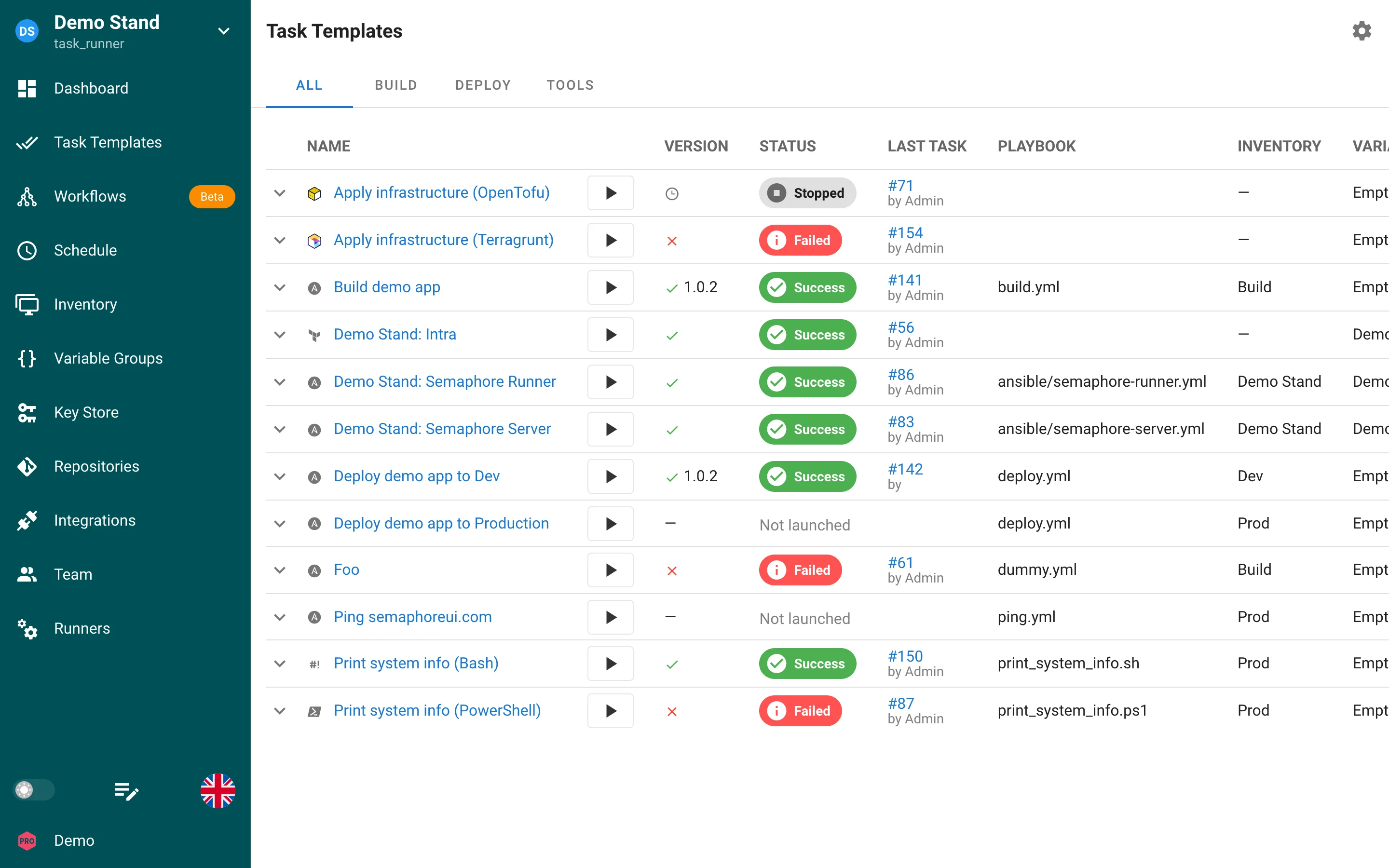
| Column | Content |
|---|---|
| Name | Template name with the application icon. The play button starts a new task. |
| Version | The latest build version for build and deploy templates, otherwise the result icon of the last task. |
| Status | Status badge of the last task, or Not launched. |
| Last Task | Number of the last task and who started it. |
| Playbook | The file the template runs. |
| Inventory, Variable Groups, Repository | Resources attached to the template. |
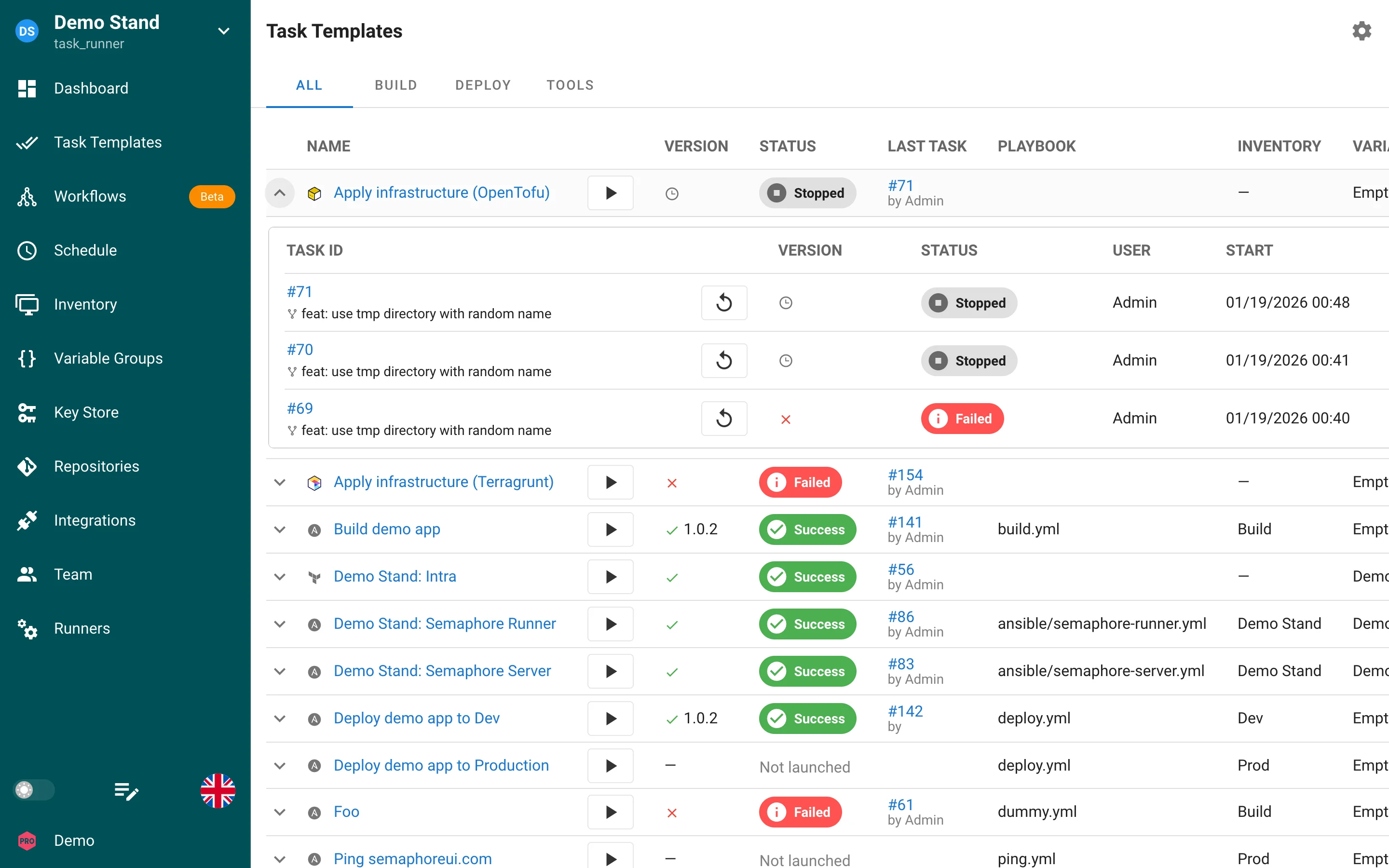
The tabs above the list are views: named groups of templates. The gear icon in the top right corner lets you choose which columns are shown. Click the arrow on the left of a row to expand the latest tasks of that template.
Template page
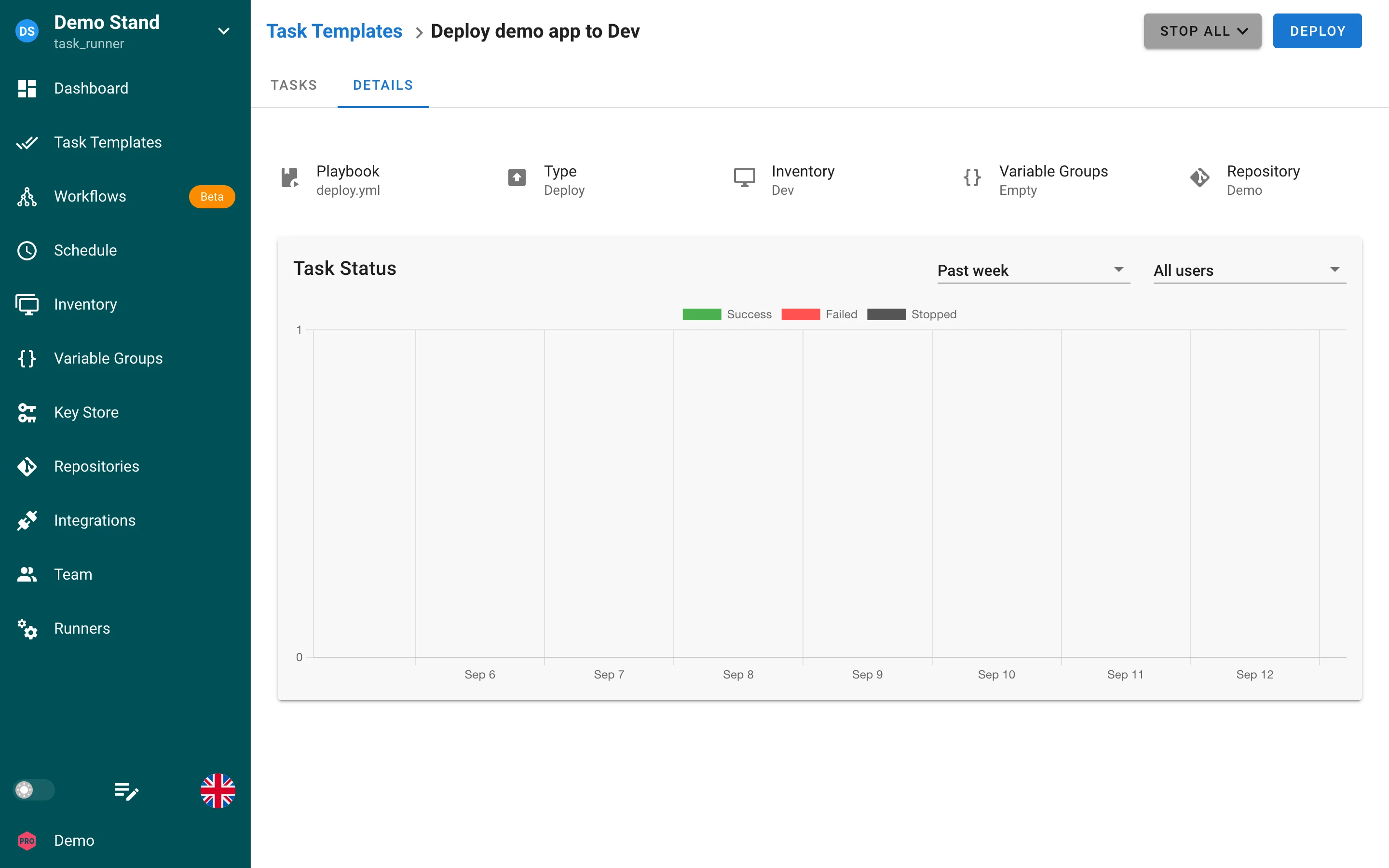
Click a template name to open its page. The button in the top right corner starts a task (Run, Build, or Deploy depending on the type), Stop all stops every running or queued task of the template.
| Tab | Content |
|---|---|
| Tasks | Tasks of this template with a rerun button in every row. |
| Details | The playbook, type, inventory, variable groups, and repository, plus the task status chart with the same filters as Stats. |
| Workspaces | Terraform, OpenTofu, and Terragrunt templates only: the list of workspaces, see Workspaces. |
Template types
| Type | Purpose |
|---|---|
| Task | A plain run. The default type. |
| Build | Produces an artifact and assigns it an auto-incremented version. |
| Deploy | Deploys a version produced by a build template. |
Build and deploy templates and the semaphore_vars they pass to playbooks are described in Build and deploy templates.
Template form
Users with the Manager role or higher can create and edit templates with New Template and the pencil icon. The form is organized in the following groups. Fields marked with an application name appear only for that application.
Common fields
| Field | Description |
|---|---|
| Name | Required. Template name. |
| Description | Optional text shown under the name. |
| App | Application to run. |
| Repository | Repository with the playbook or script, see Repositories. |
| Branch | Git branch to check out. Empty means the branch configured in the repository. Disabled for a monorepo repository, which is checked out once for all templates. |
| Playbook / Script filename | Path to the file relative to the repository root. For Terraform apps: the subdirectory with the configuration. |
| Different working directory | Run the tool from another directory of the repository. |
| Inventory | Ansible inventory, or a workspace for Terraform apps. |
| Variable Groups | One or more variable groups whose variables and secrets are injected into the task, see Variable Groups. |
| Vault password (Ansible) | Keys used to unlock Ansible Vault, see Multiple vault passwords. |
| View | Which view tab shows the template. |
| CLI args | Extra command line arguments as a JSON array, for example ["-vvv"]. |
Type-specific fields
| Field | Type | Description |
|---|---|---|
| Start Version | Build | The first version to assign, for example 1.0.0. |
| Build Template | Deploy | The build template whose artifacts this template deploys. |
| Autorun | Deploy | Start a deploy automatically after every successful build. |
Advanced options
| Field | Description |
|---|---|
| Allow parallel tasks | Let several tasks of this template run at the same time, see Parallel tasks. |
| Alerts | Use project defaults sends to the server channels enabled for the project and to the alerts marked as project default; Use a custom set of alerts sends only to the selected alerts. See Alerts. |
| Suppress success notifications, Suppress error notifications | Skip notifications for successful or failed tasks of this template. |
| Runner tag (Pro) | Run tasks only on runners with this tag, see Project runners. |
| Executor image | Container image for Docker and Kubernetes runners, see Executor image. |
| Issue JWT to task runner, JWT audience, JWT TTL | Give the task a signed token, see Task JWTs. |
| Auto-run task if new git commit have been found | Poll the repository at the given interval and start a task when the branch moves. |
| Survey variables | Inputs the user fills in when starting a task, see Survey variables. |
Prompts
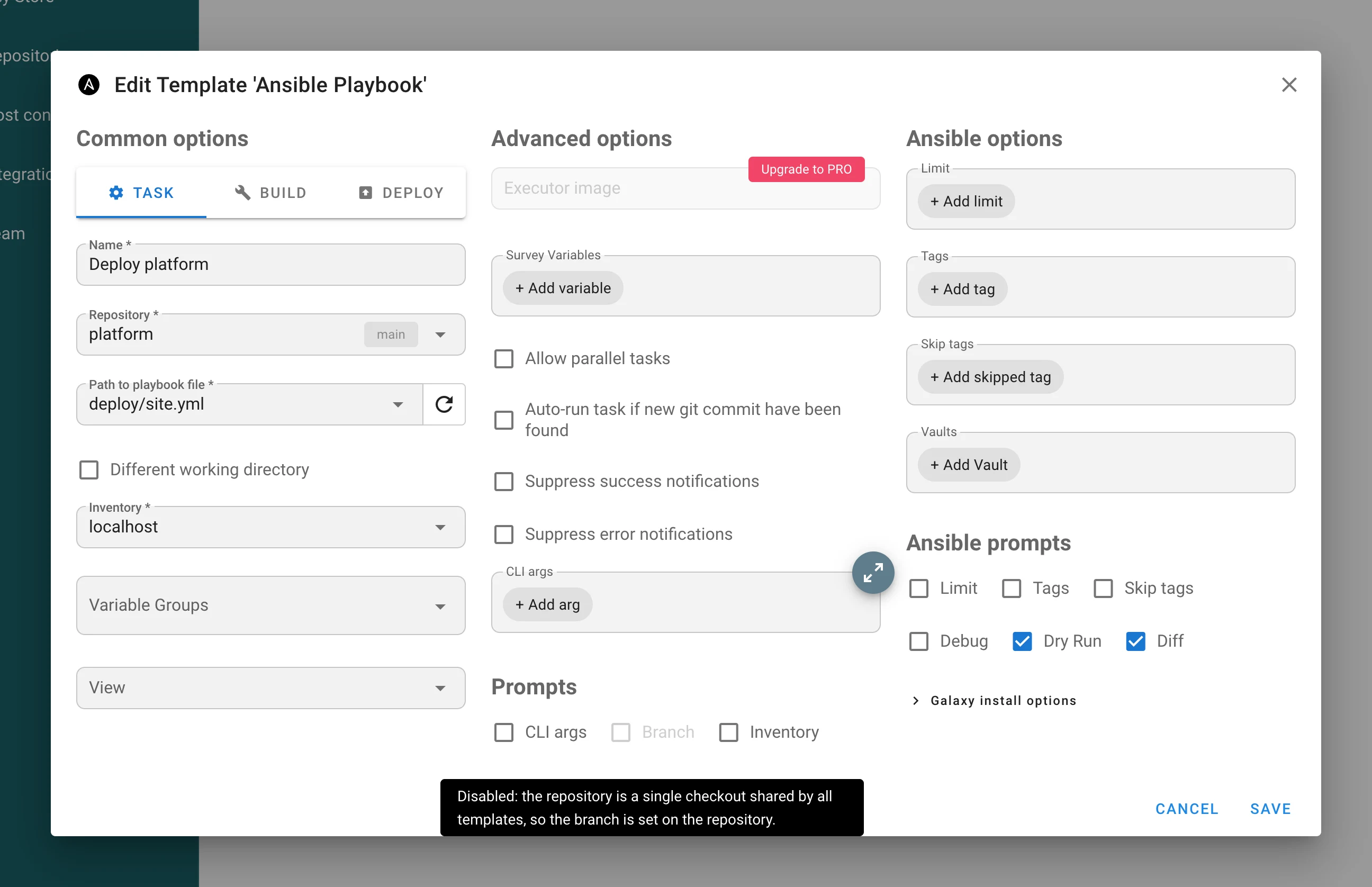
Prompts are checkboxes that let the user change built-in options in the New Task dialog: branch, inventory, CLI arguments, and, for Ansible, limit, tags, skip tags, debug level, and Galaxy installation. See Prompts.
For a monorepo repository the Branch prompt is disabled: every template of such a repository runs in one shared checkout, so a task cannot switch it to another branch or commit. Hover the disabled field to see the reason.
Application options
- Ansible: limit, tags, skip tags, and Galaxy installation options, see Ansible.
- Terraform/OpenTofu/Terragrunt: auto approve and backend override, see Terraform/OpenTofu and HTTP backend.
Parallel tasks
By default, tasks from the same template execute sequentially. To allow concurrent runs of the same template, enable the "Allow parallel tasks" option in the template settings.
Executor image (Docker and Kubernetes runners)
When a project runner uses the Docker (Pro) or Kubernetes (Enterprise) executor, each task normally runs in the default job image configured on the runner (for example semaphoreui/job:latest). You can override that image per template.
- Open the template settings
- Set Executor image to the container image reference (for example
my-registry/ansible:2.16orsemaphoreui/job:latest) - Save the template
Behavior:
- Only Docker and Kubernetes runner executors honor this field; the local executor ignores it
- Leave the field empty to use the runner's default image from
runner.executor.docker.imageorrunner.executor.k8s.image - Clearing the field in the UI removes the override
Use cases:
- Templates that need a different toolchain (older Ansible, a specific Terraform version, extra OS packages baked into a custom image)
- Isolated images for security-sensitive templates without changing the runner-wide default
See Runner configuration for default image settings and Project runners for executor setup.