License activation Pro
Semaphore Pro and Enterprise features are enabled with a license key. You can activate the license from the web UI, or provide the key in the server configuration for automated deployments.
Before you start
- You do not need to reinstall Semaphore UI or switch to a different build to activate Pro or Enterprise. Your current Semaphore UI version can be activated with a license key. Update to the latest version if you want access to the newest Pro or Enterprise features.
- Sign in with an administrator account.
- Have your license key ready. You can find it in the purchase email or in the Semaphore UI Portal.
Activate from the web UI
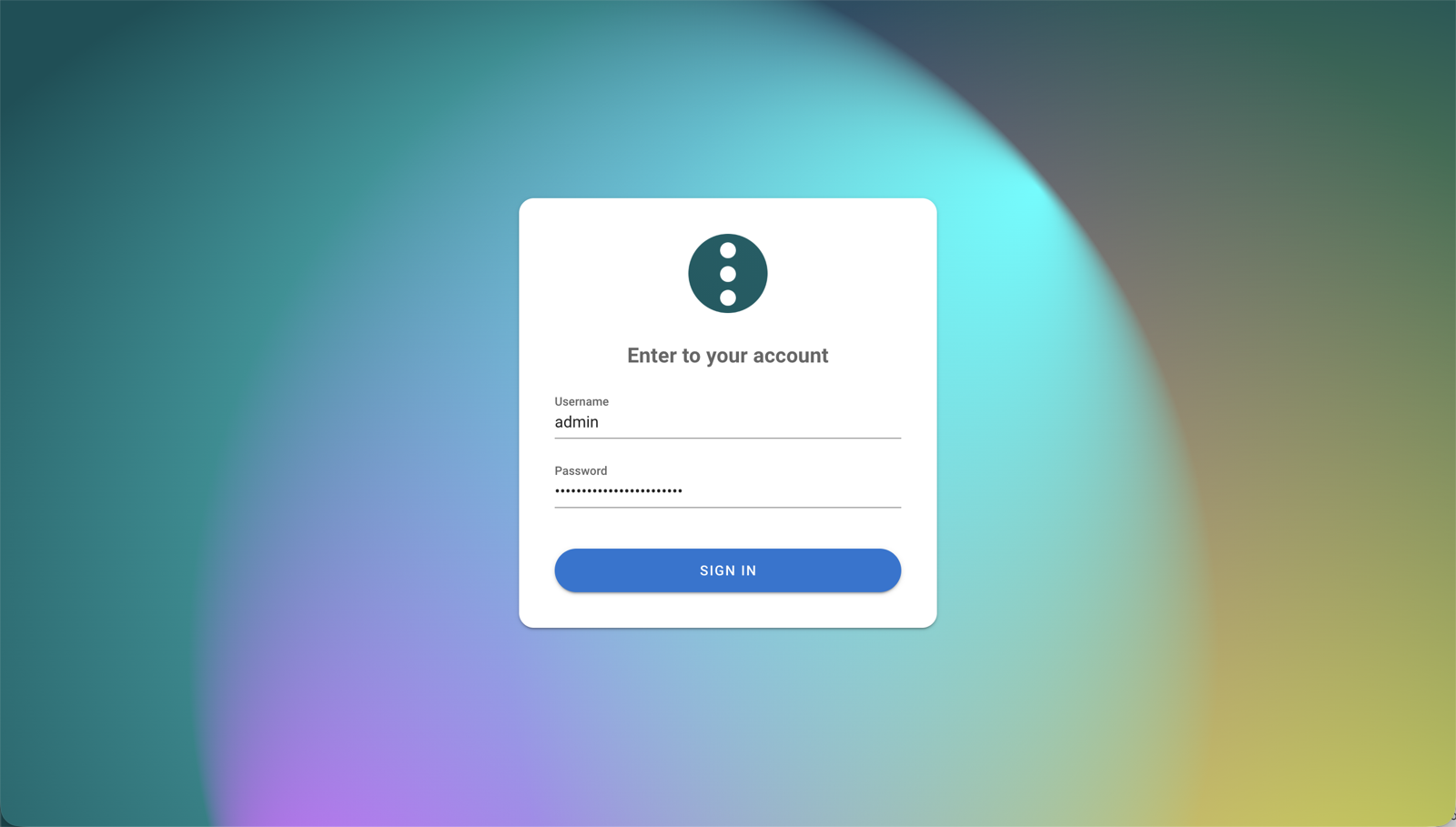
- Sign in to Semaphore UI as an administrator.
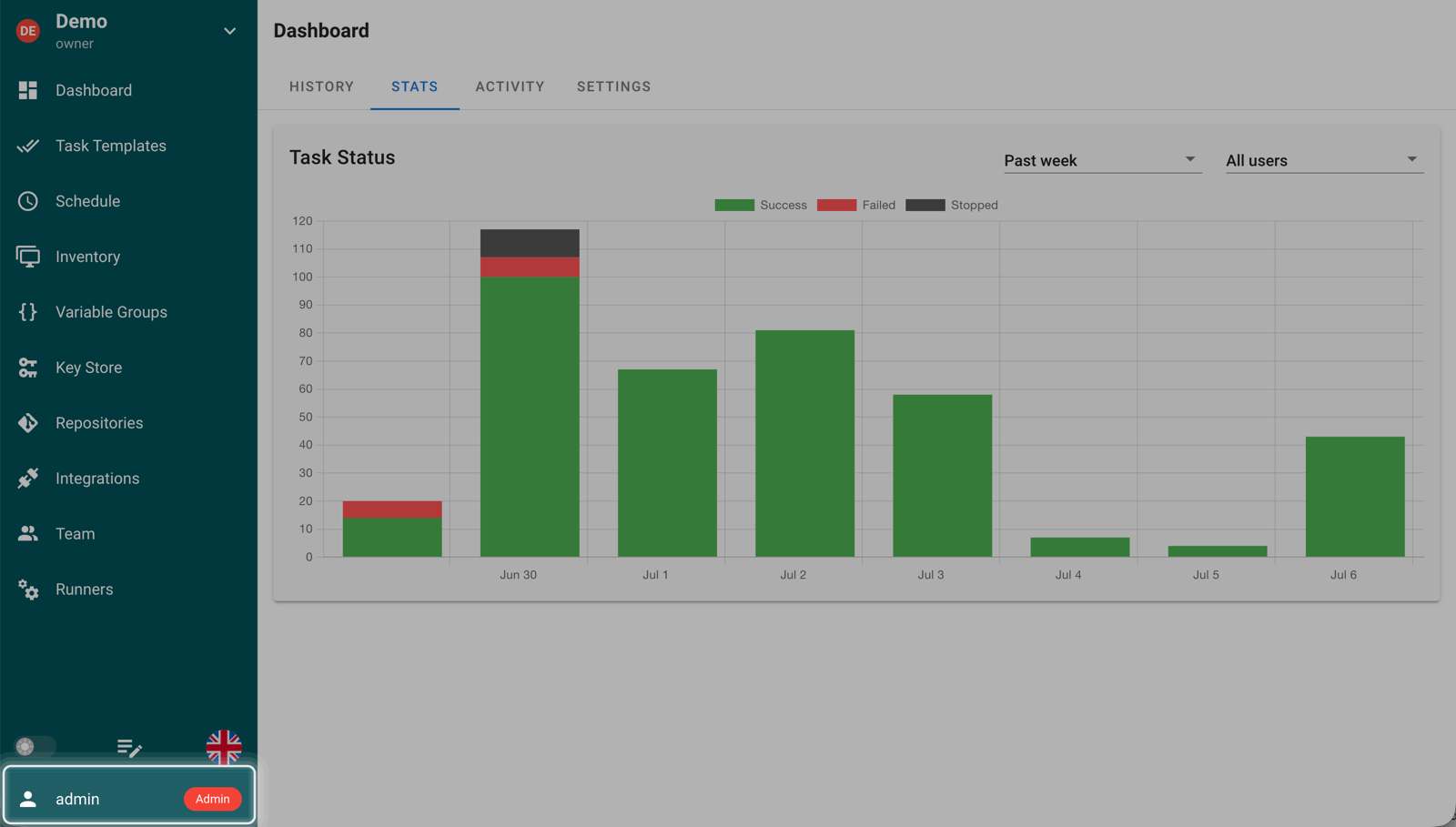
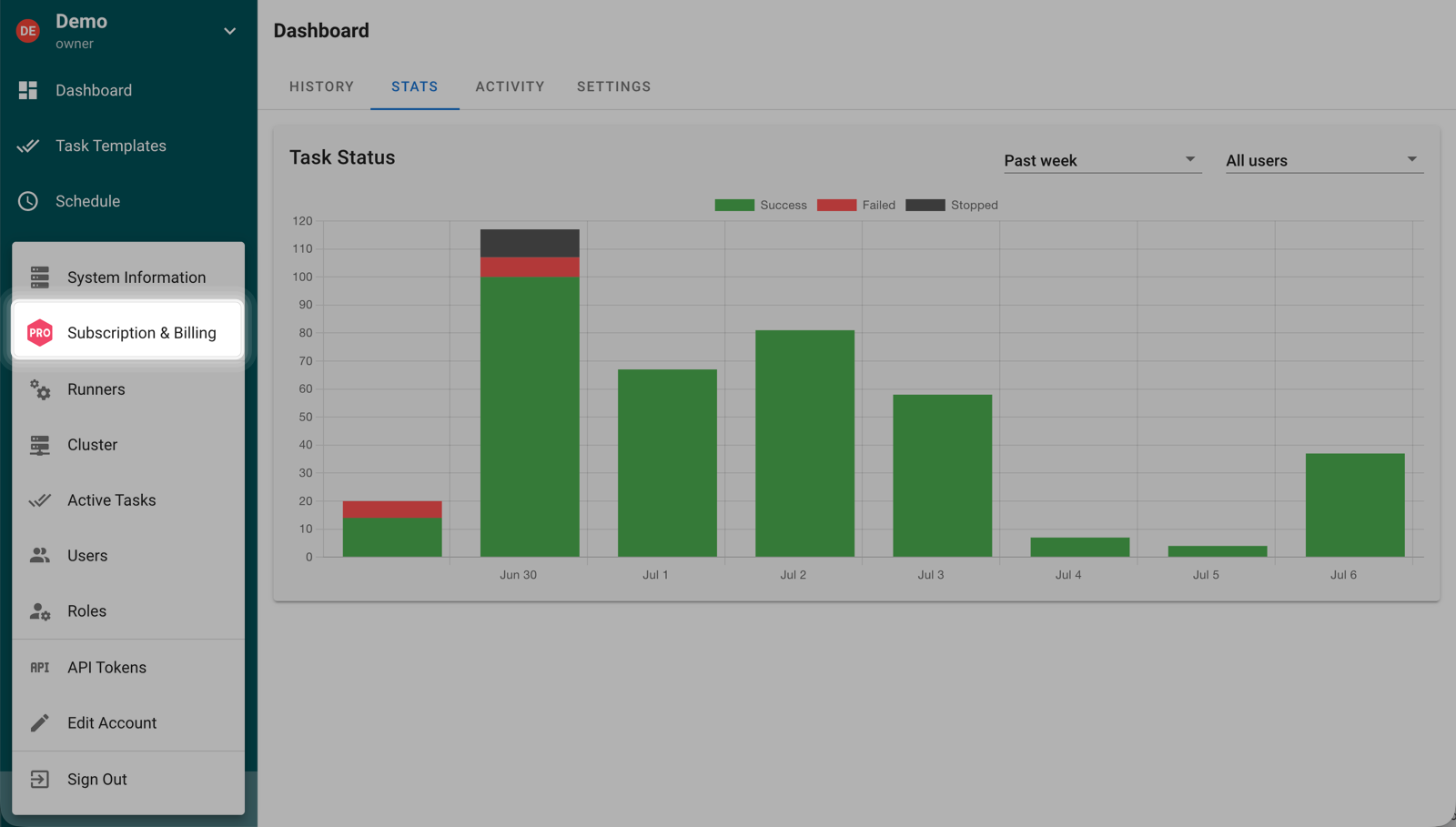
- Open the Admin menu from the user area in the lower-left corner.
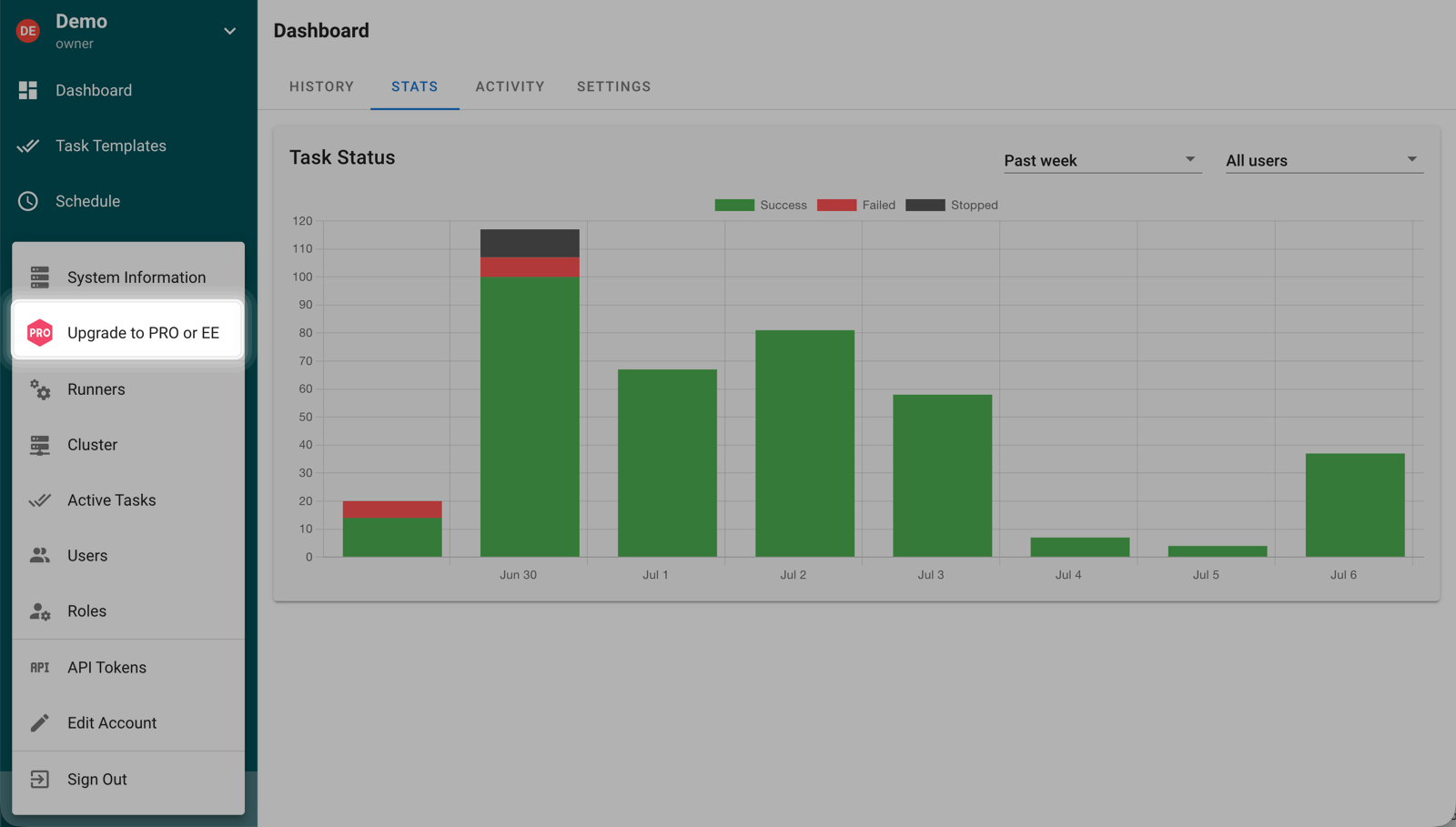
- Select Upgrade to PRO or EE.
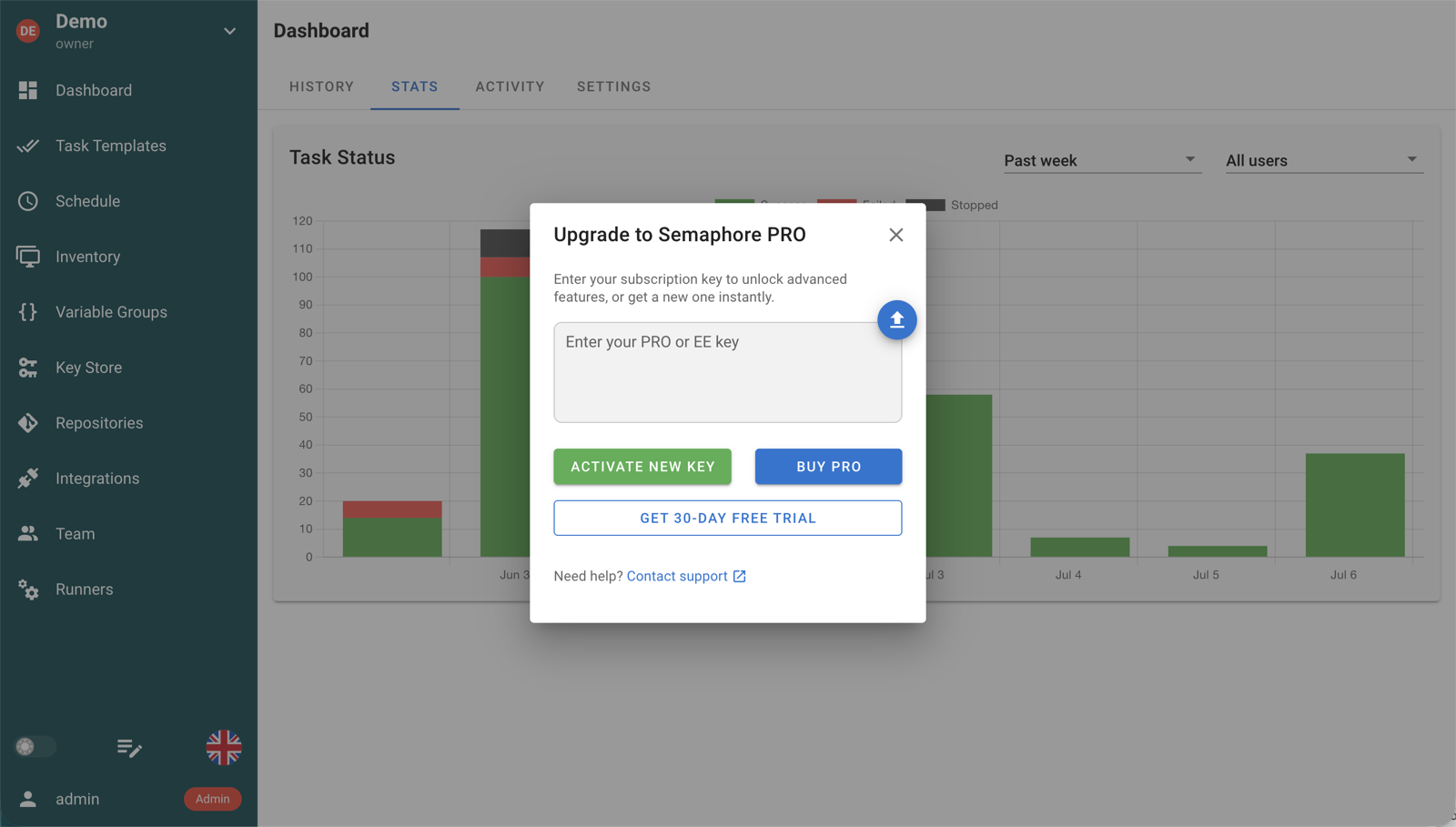
- Paste your license key into the activation dialog and click ACTIVATE NEW KEY.
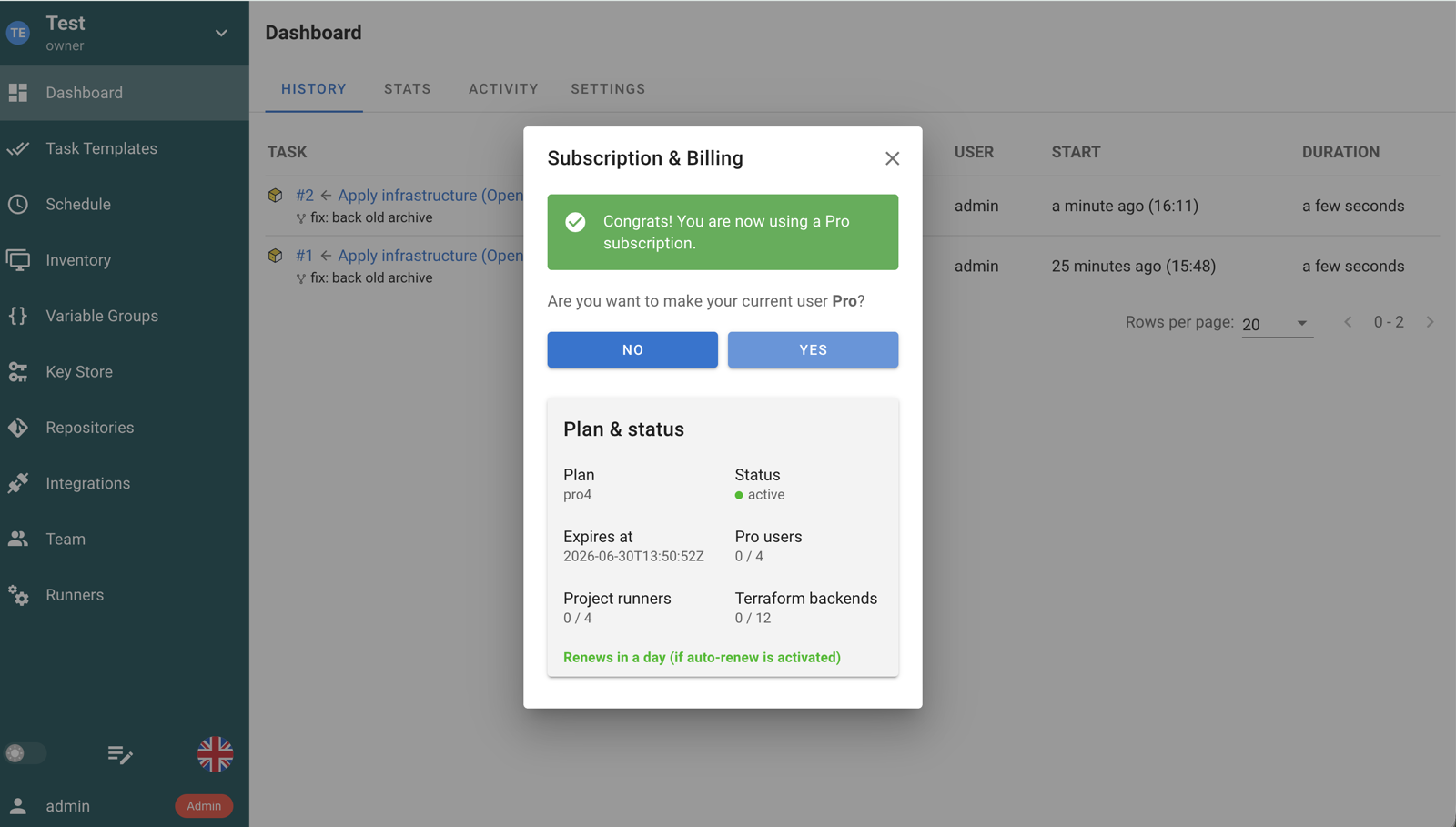
After a successful activation, Semaphore UI shows your current license details in the Subscription & Billing dialog.
Activate from configuration
For Docker, Kubernetes, systemd, or other automated deployments, provide the license key in the server configuration instead of entering it in the UI. The configuration option names use subscription.*.
In config.json:
{
  "subscription": {
    "key": "YOUR_LICENSE_KEY"
  }
}
Or as an environment variable:
export SEMAPHORE_SUBSCRIPTION_KEY=YOUR_LICENSE_KEY
You can also store the key in a file:
{
  "subscription": {
    "key_file": "/run/secrets/semaphore-license-key"
  }
}
or:
export SEMAPHORE_SUBSCRIPTION_KEY_FILE=/run/secrets/semaphore-license-key
When the license key is managed by configuration, Semaphore UI disables editing and activation controls in the Subscription & Billing dialog. This applies to both subscription.key and subscription.key_file, because the server reads the key file into the runtime license key at startup.
Manage or replace a license key
To renew, replace, or review your license, open the Admin menu and select Subscription & Billing.
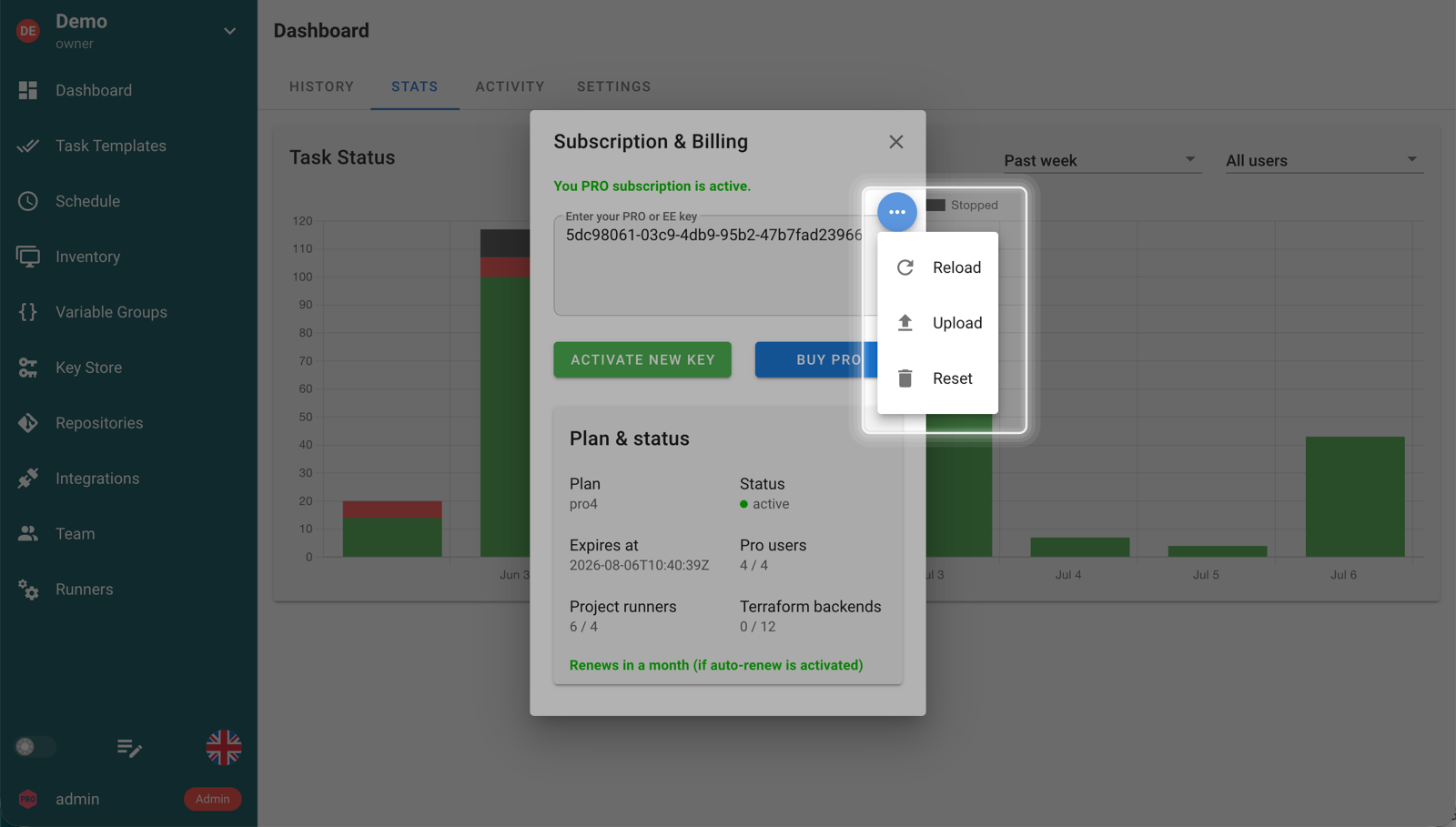
For a license key managed from the web UI, open the action menu in the Subscription & Billing dialog to reload, upload, or reset the key.
If the key is configured on the server:
- Replace the value of
subscription.key, or update the contents of the file referenced bysubscription.key_file. - Restart Semaphore UI so the server reloads the license key.
- Verify that the expected Pro or Enterprise options are available in Semaphore UI.